Getting Started with SketchUp: Your First Steps in 3D Design
SketchUp Basics
Welcome back to SketchUp Made Simple. In Episode 7, we’ll learn how to keep models organized using groups and components—an essential skill for clean and manageable designs. Let’s jump in!
What Are Groups & Components?
Groups: Combine multiple objects into one unit, making it easier to move/edit without affecting the rest of the model.
Components: Like groups but with an extra feature—editing one updates all identical copies in the model.
Key Difference: Groups are temporary, while components are reusable and dynamic.
✅ Example: If you edit one chair component, all copies update automatically.
Creating Groups
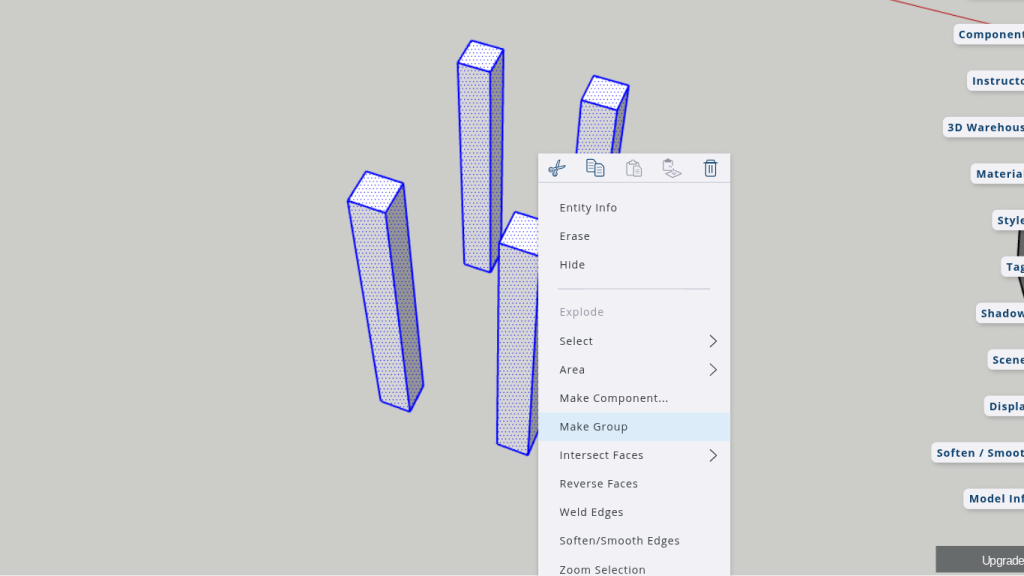
Select the objects (e.g., table legs).
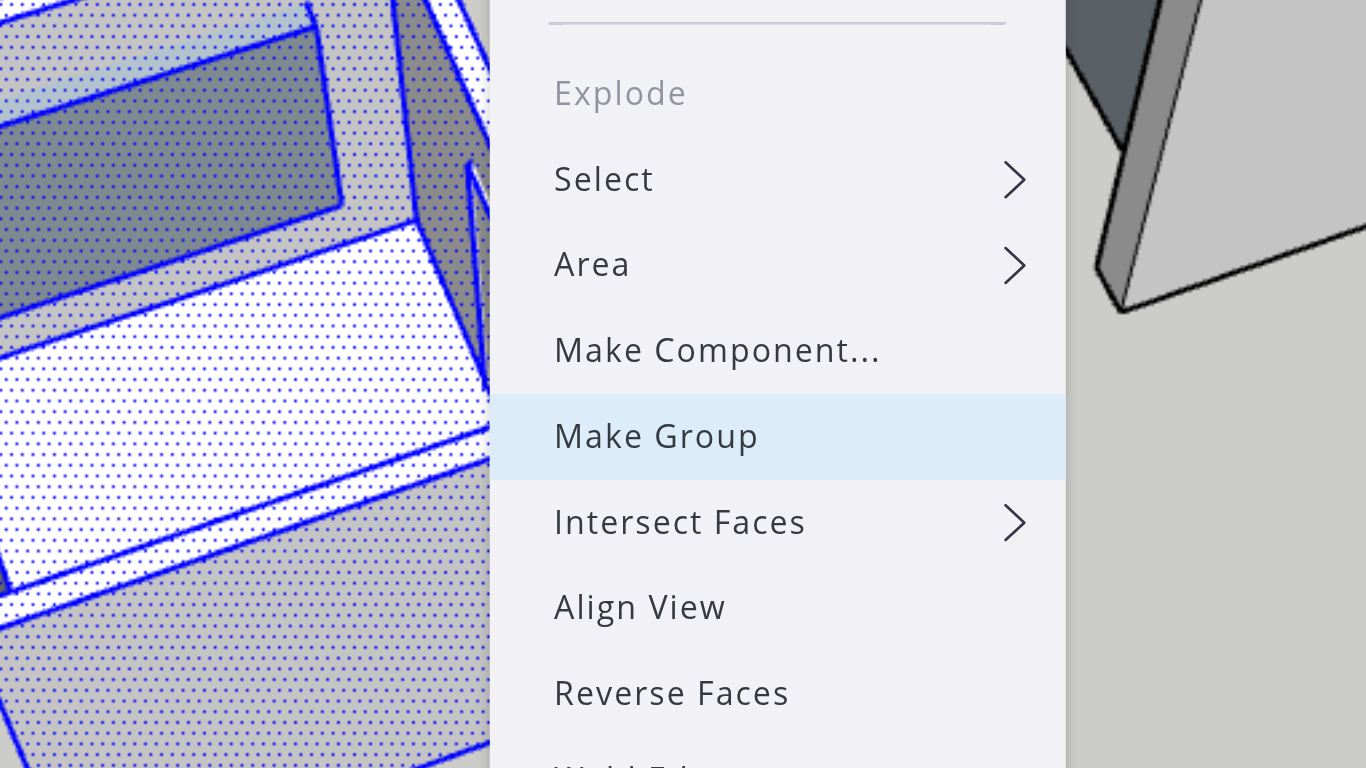
Right-click → Make Group or use the shortcut.
Move grouped objects without merging them into other geometry.
✅ Pro Tip: Nest groups inside each other for better organization.
Using Components
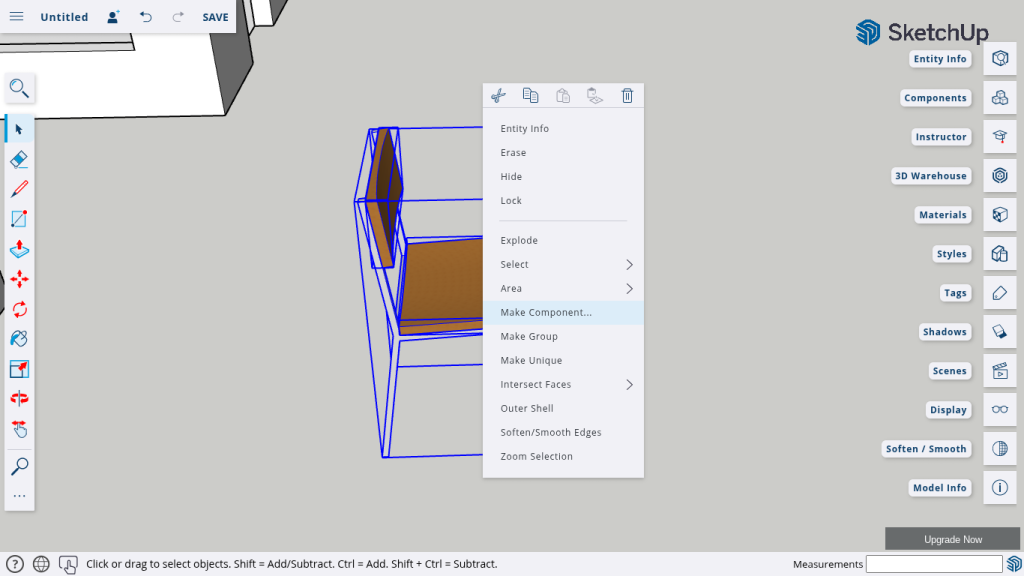
Create a Component:
Select the object → Right-click → Make Component.
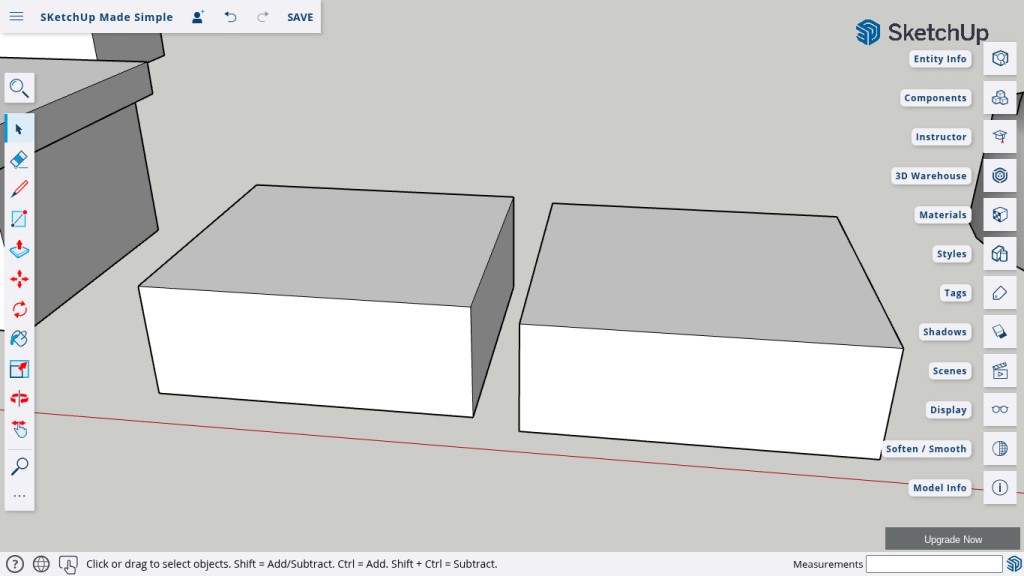
Duplicate
Duplicate it across the model.
Edit one
Edit one → All copies update automatically!
Nesting Groups & Components
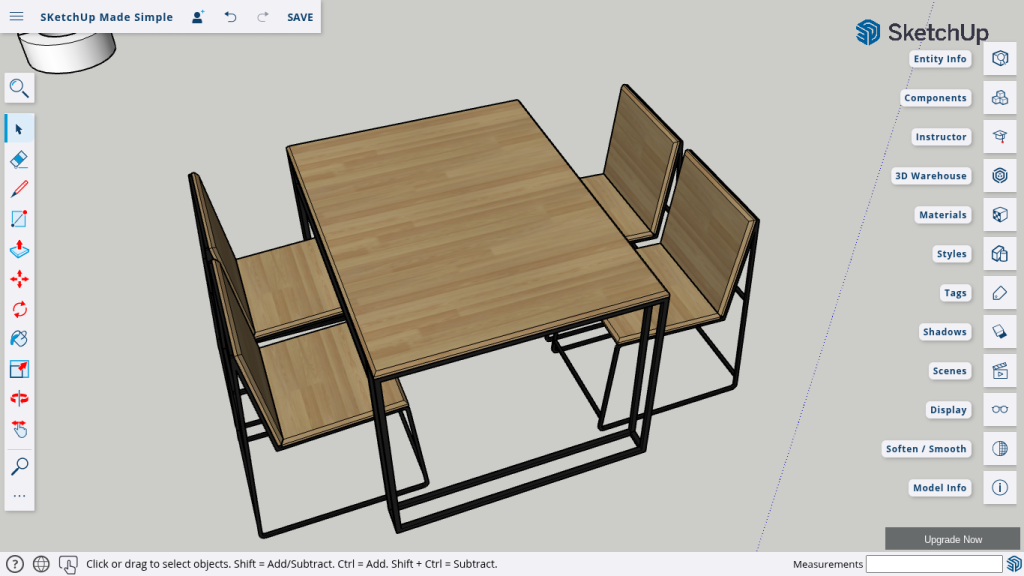
Combine groups & components for complex designs (e.g., a dining set).
Keeps projects organized while allowing individual edits.
✅ Try It: Group a table and chairs together to move them as a set.
Exploding Groups & Components
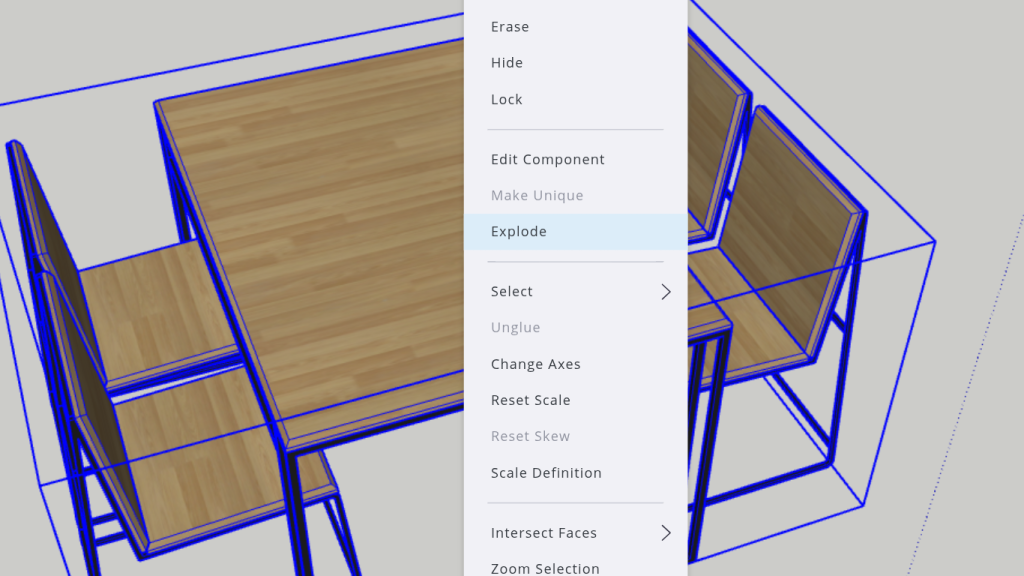
Right-click → Explode to break a group/component into separate parts.
Caution: Once a component is exploded, it loses its connection to duplicates.
✅ Use It When: You need to edit specific elements independently.
Wrap-Up
That’s how you use groups & components to stay organized in SketchUp! Whether designing furniture, rooms, or buildings, these tools will save time and keep your models clean.
👉 Like, share, and subscribe to SketchUp Made Simple! See you in Episode 8! 🚀
Join Us For Episode 8
Start Episode 2 to set up your free SketchUp account and unlock its features.