Measure, Guide, and Scale – Master Precision in SketchUp!
Course Overview:
In this course, you’ll learn how to use SketchUp’s Tape Measure tool to create accurate and professional models. By the end of the lessons, you’ll be able to measure distances, create guidelines, and scale objects with precision.
Lesson 1: Introduction to the Tape Measure Tool
📌 What You’ll Learn:
What the Tape Measure tool is
How it helps you achieve precise designs
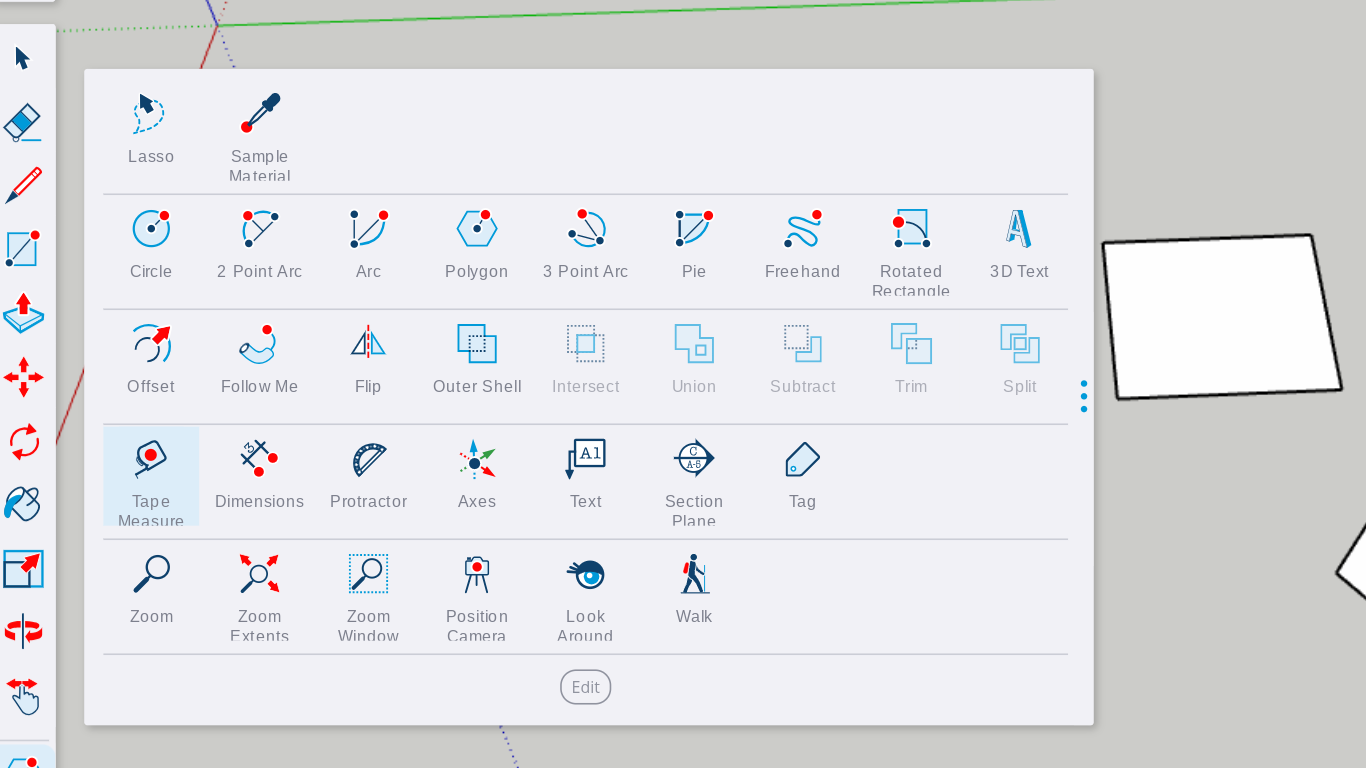
Where to find it in SketchUp
🎯 Key Concept: The Tape Measure tool is used for measuring distances, setting guidelines, and scaling models.
How to Access the Tape Measure Tool
🔹 Method 1: Click the Tape Measure icon in the toolbar. 🔹 Method 2: Press T on your keyboard for a shortcut.
✅ Activity: Open SketchUp and locate the Tape Measure tool using both methods.
Lesson 2: Measuring Distances Between Objects
📌 What You’ll Learn:
How to measure distances between objects
How to interpret measurements in the Dimensions Box
Steps to Measure an Object
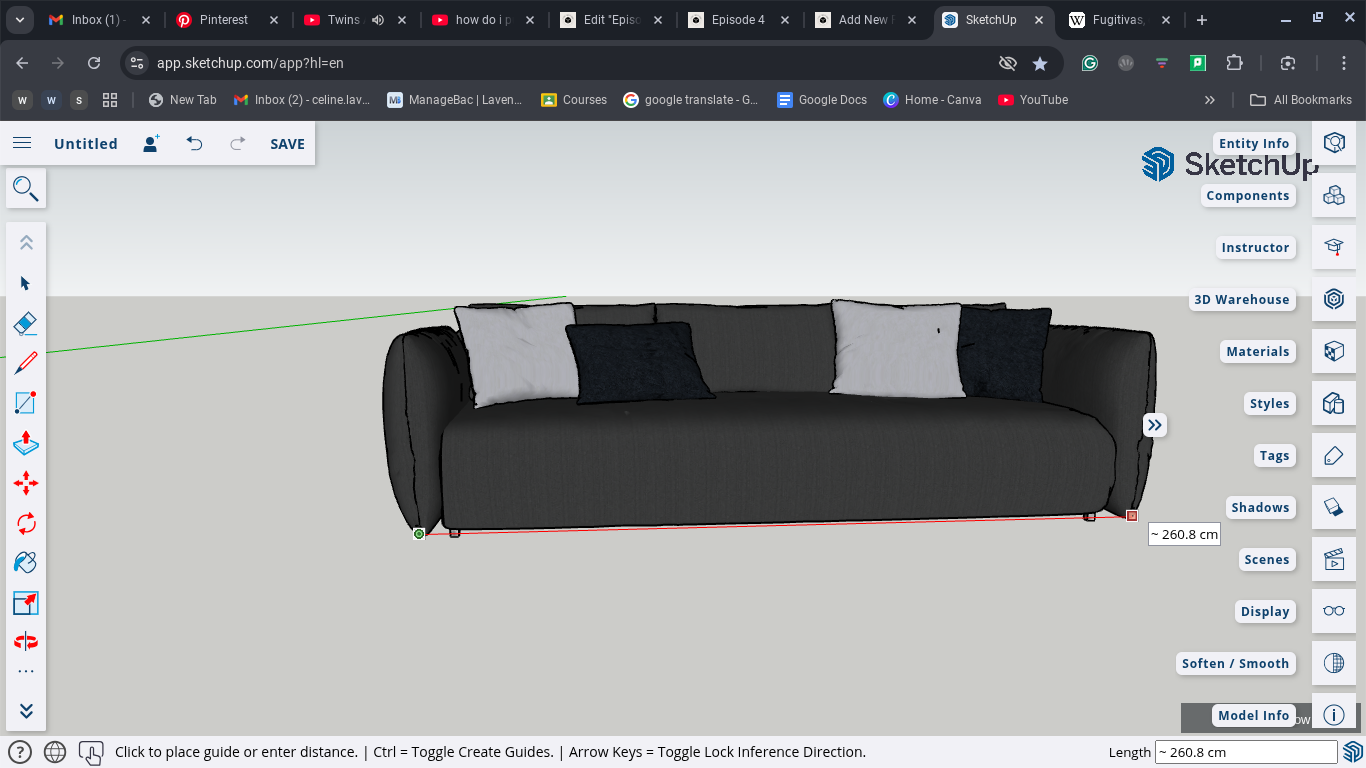
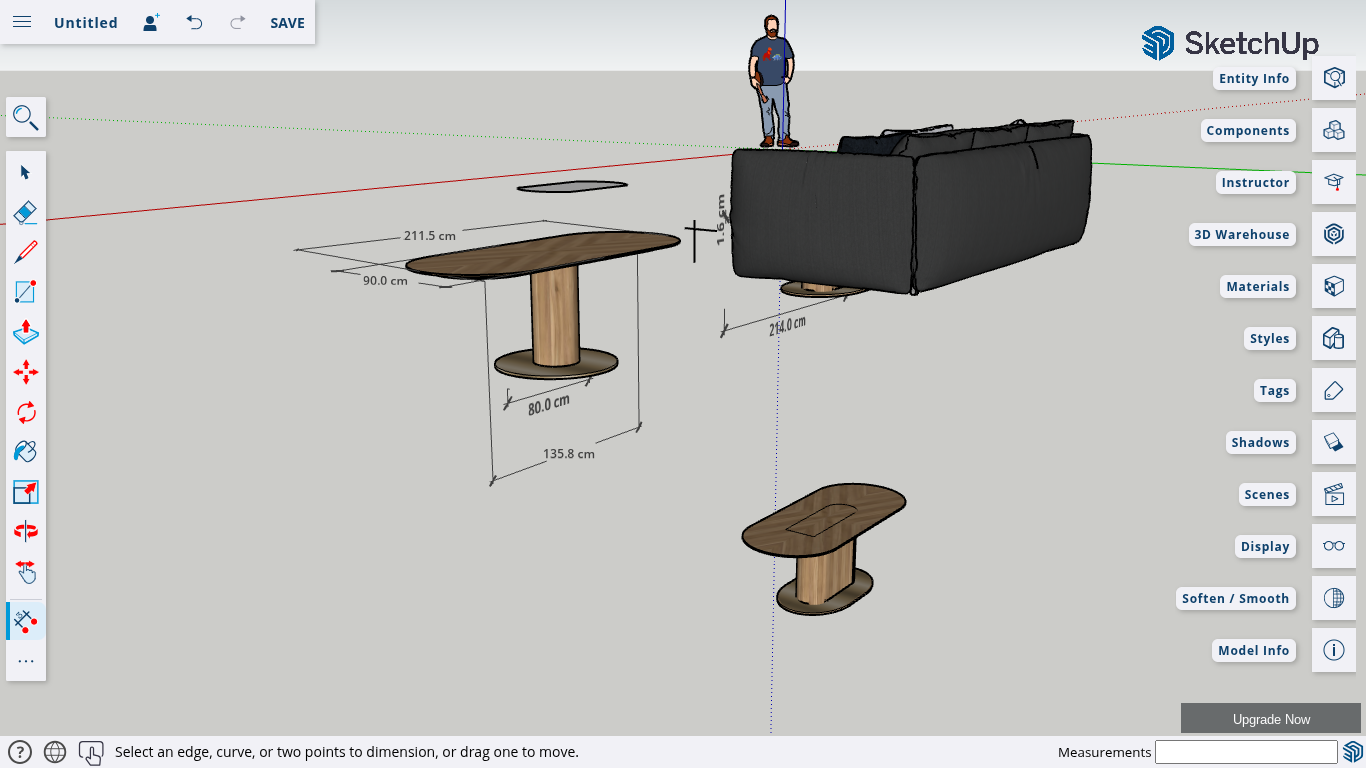
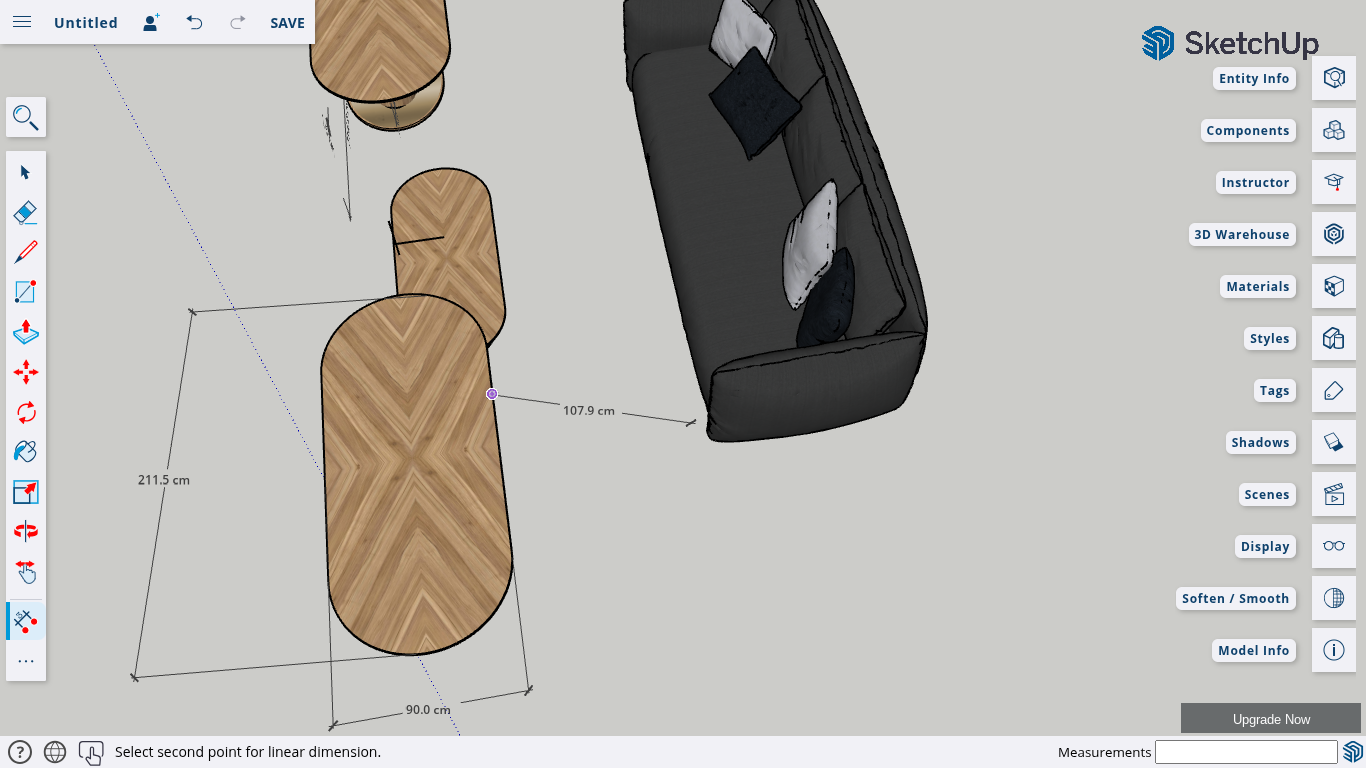
1️⃣ Select the Tape Measure tool. 2️⃣ Click on a starting point (e.g., one edge of a sofa). 3️⃣ Drag the mouse to the opposite point. 4️⃣ The exact length appears in the bottom-right corner.
📍 Example Measurements:
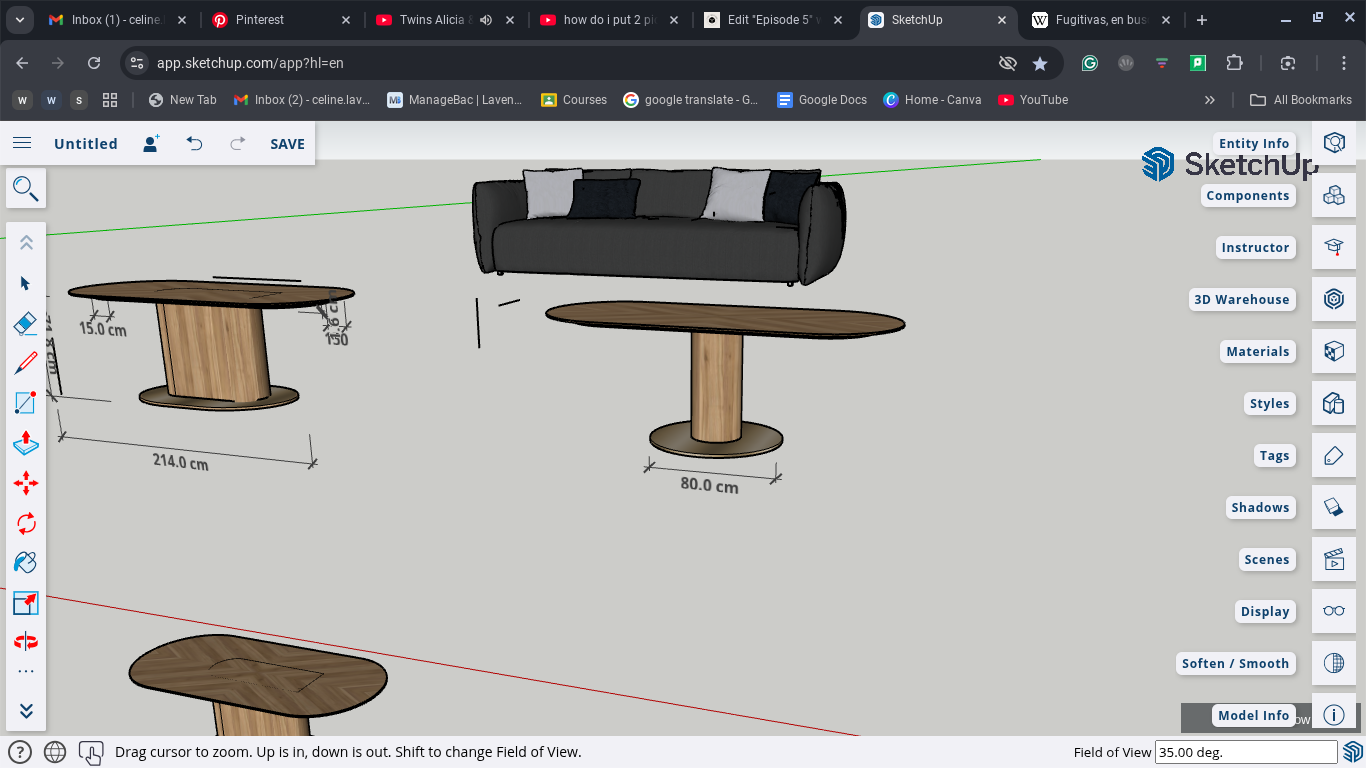
Sofa Length: 1,145 cm
Sofa Width: 42.5 cm
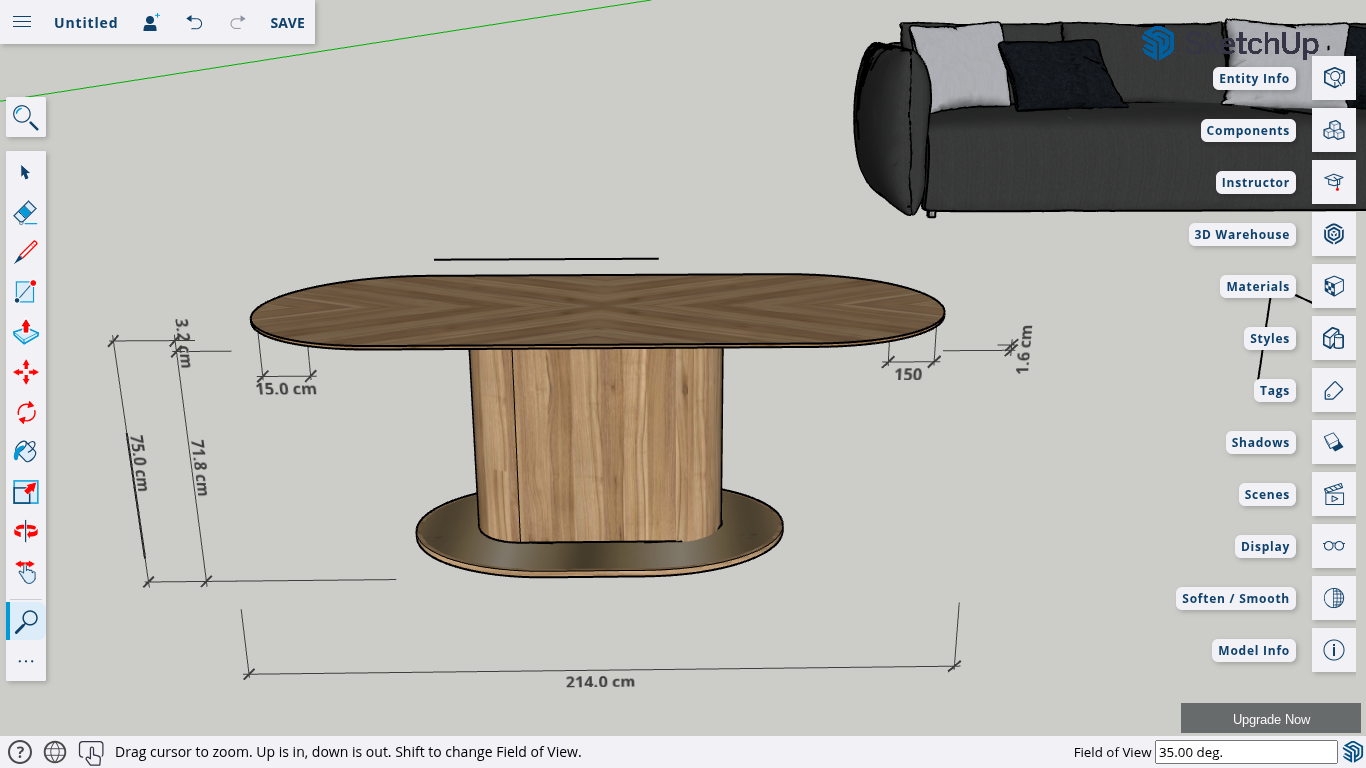
Dining Table Length: 1,168 cm
Dining Table Width: 531 cm
📝 Key Takeaway: Measuring ensures your objects fit perfectly in your model.
✅ Activity: Measure 3 objects in your SketchUp model and write down their dimensions.
Lesson 3: Creating Guidelines for Alignment
📌 What You’ll Learn:
How to set guide lines for precise object placement How to position objects accurately How to Create Guidelines 1️⃣ Click an edge of an object. 2️⃣ Drag the cursor perpendicular to the edge. 3️⃣ Type a specific distance (e.g., 5 feet) and press Enter.
📍 Example: Placing a Sofa with Guide Lines
Measure sofa width (42.5 cm) and create a guide at 421 cm. Measure sofa length (1,145.7 cm) and create a guide at 1,146 cm. 📌 Pro Tip: Always measure large objects first to avoid misalignment.
✅ Activity: Set guidelines for placing a table in an empty SketchUp room.
Lesson 5: Erasing Guidelines for a Clean Workspace
📌 What You’ll Learn:
How to remove guidelines to keep your workspace tidy
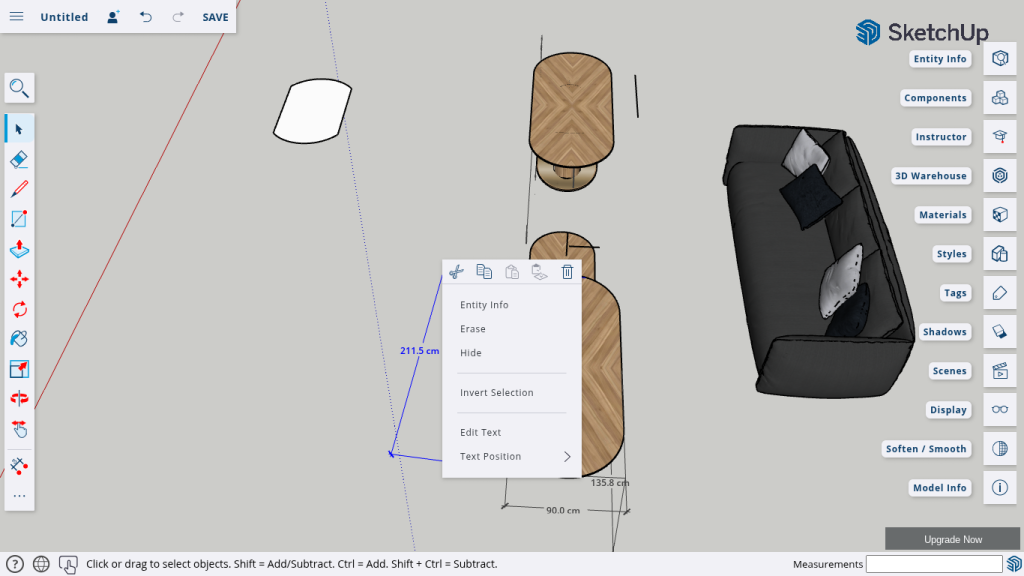
How to speed up the deletion process
Ways to Erase Guidelines
✔ Option 1: Select & delete manually. ✔ Option 2: Use the “Hide” option. ✔ Option 3: Hold Shift to erase multiple lines at once.
📌 Pro Tip: A clean workspace makes designing faster and more efficient.
✅ Activity: Create 3 guide lines and practice erasing them.
Final Assessment: Precision Modelling Challenge
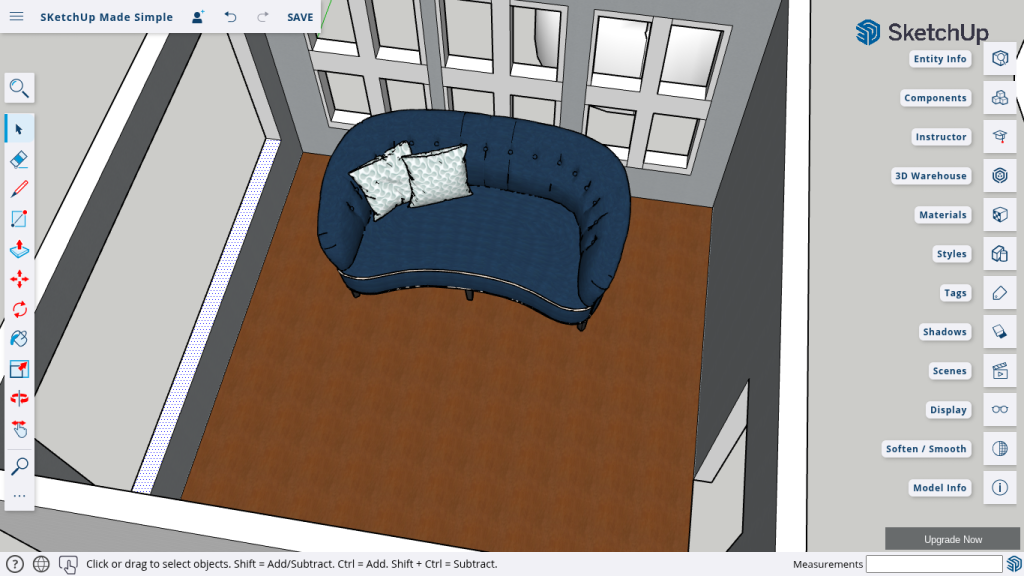
💡 Challenge: Design a simple living room layout using the Tape Measure tool for measurements, guidelines, and scaling.
Requirements:
✔ Measure and align furniture correctly. ✔ Use guide lines for precise placement. ✔ Resize at least one object to fit a space.
You’ve Mastered the Tape Measure Tool!
🔹 Now you can measure, guide, and scale with confidence!
📢 Next Steps: ✔ Explore more SketchUp tools. ✔ Continue to refine your 3D modeling skills. ✔ Check out the next course on designing complex models.
📍 Want More SketchUp Tips? 🔔 Subscribe to SketchUp Made Simple on YouTube for more tutorials!
Join Us For Episode 6
Take your SketchUp skills to the next level—one precise measurement at a time!