Get ready for Episode 4! Next, we’ll dive into creating your first 3D model in SketchUp—turning simple shapes into stunning designs!
Lesson Overview
In this lesson, you’ll learn how to navigate SketchUp’s interface efficiently. We’ll explore: ✅ Toolbars and essential tools for modeling ✅ The workspace and how to use the axis system ✅ Navigation tools to smoothly move around your 3D designs
Understanding the Toolbars
The toolbar is your toolbox for creating and editing models. Here are key tools you’ll use:
Select Tool (Pointer) – Press Spacebar to activate it.
Erase Tool – Shortcut: E to remove unwanted parts.
Line Tool – Shortcut: L to draw lines for objects.
Rectangle Tool – Shortcut: R to create rectangles.
Push/Pull Tool – Essential for making 3D objects.
Move Tool (M) – Shift objects within your model.
Rotate Tool (Q) – Adjust the angle of objects.
Paint Bucket (B) – Apply colors and textures.
Scale Tool – Resize objects to fit proportions.
🛠 Pro Tip: Group objects before scaling to avoid distortions!
Exploring the Workspace
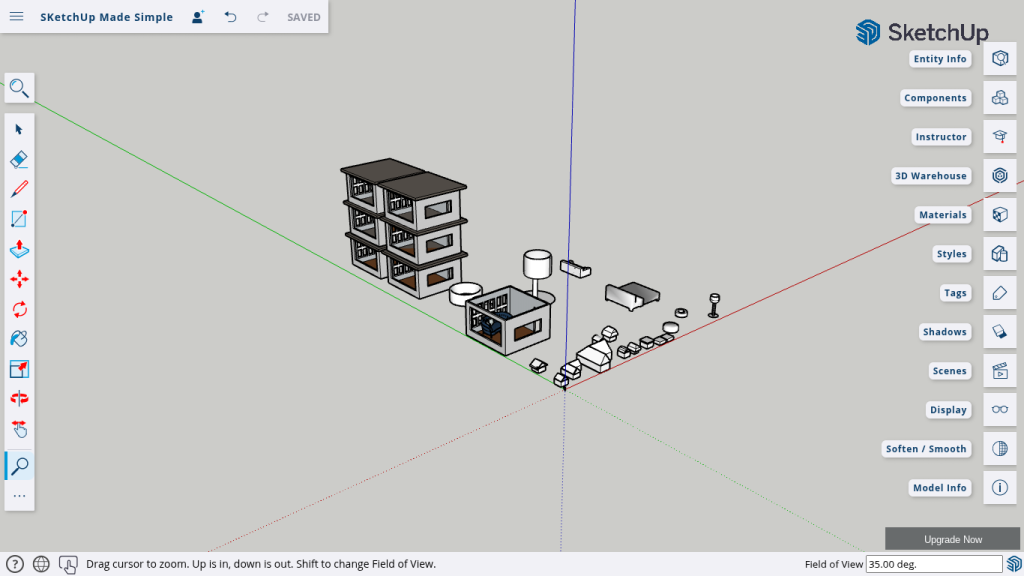
The gray modeling area is where all your designs come to life! Key workspace elements:
Axis Lines: Red, Green, and Blue help maintain alignment.
3D Navigation: Keep an eye on which axis your lines are following to avoid mistakes.
Modeling Mistakes: Learn to spot and correct common beginner errors in SketchUp.
🎯 Exercise: Try drawing a simple house floor plan while keeping an eye on the axis colors.
Mastering Navigation Tools
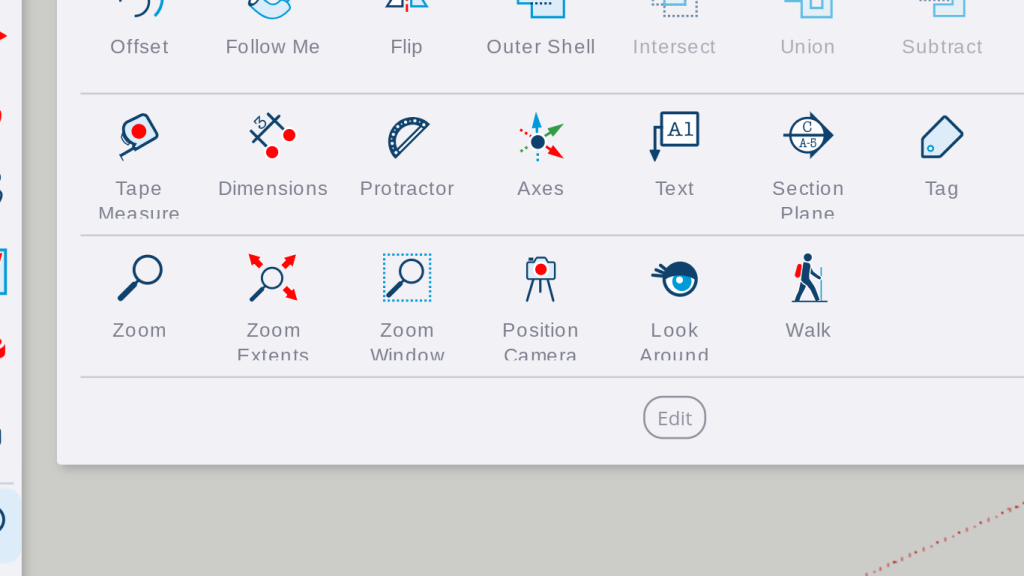
Navigate your models smoothly with these essential tools:
Orbit (O): Rotate around your model to see different angles.
Pan (Shift + Middle Mouse Click): Move the view left, right, up, and down.
Zoom: Use the scroll wheel or Zoom Tool to get closer to details.
💡 Pro Tip: If you’re using a mouse, holding the middle mouse button allows you to orbit instantly!
What’s Next?
Episode 4: Creating Your First 3D Model! Now that you know how to navigate SketchUp, it’s time to start building your first 3D model from scratch!
🚀 Join Episode 4 to bring your ideas to life!
Join Us For Episode 4
Now that you know how to navigate SketchUp, it’s time to start building your first 3D model from scratch!