Episode 13
Bring your designs to life with realistic shadows and sunlight effects!
Introduction
Today, we’re going to explore how to add realistic shadows to your SketchUp models. Shadows not only enhance the visual appeal of your designs but also help in understanding how natural light interacts with your structures. Whether you’re designing a cozy home or a towering skyscraper, shadows can make a huge difference in how your model feels and looks. Let’s dive into the steps to make your creations shine!
Step 1: Enabling Shadows
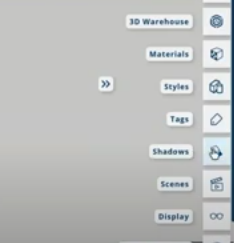
- First, navigate to the right side of your toolbar.
- Look for the Shadows section and click on it.
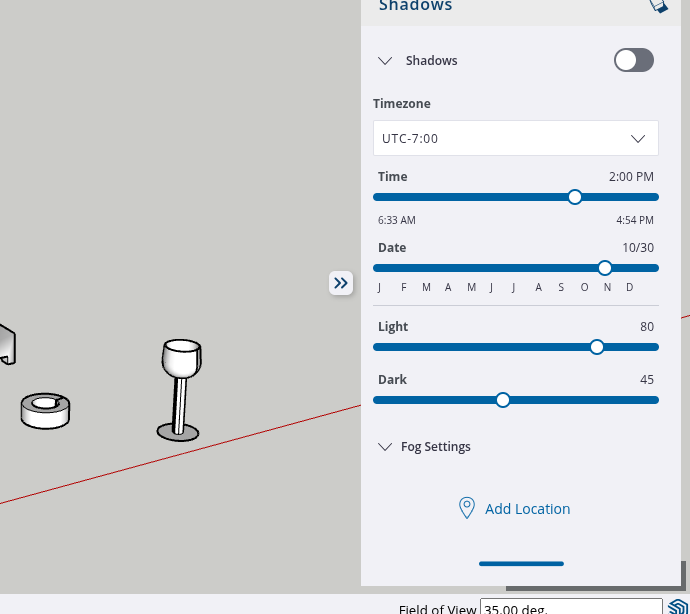
- There’s an on/off button that activates or deactivates shadows. Once enabled, your buildings will cast shadows based on their design.
- You can also choose whether the shadows should appear on the face or on the ground, based on your preference.
Step 2: Adjusting Time and Date
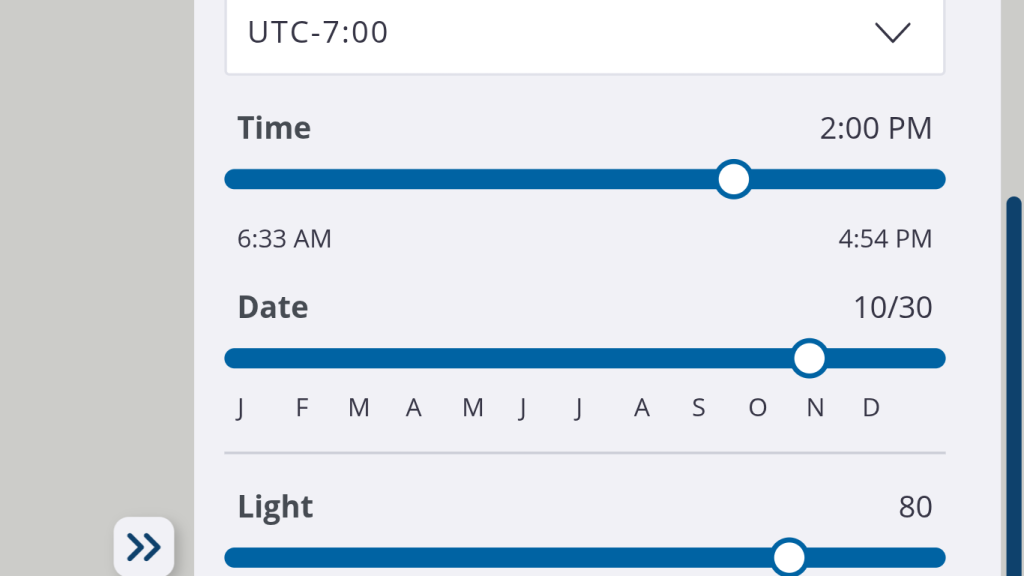
- SketchUp lets you adjust shadows based on time of day and season—this helps simulate real-world lighting:
- To simulate early morning shadows, set the time to 6:37 AM, and you’ll see long shadows.
- At 12 PM, shadows will be shorter and more direct.
- Try setting it to 6 PM to see the effect of evening light.
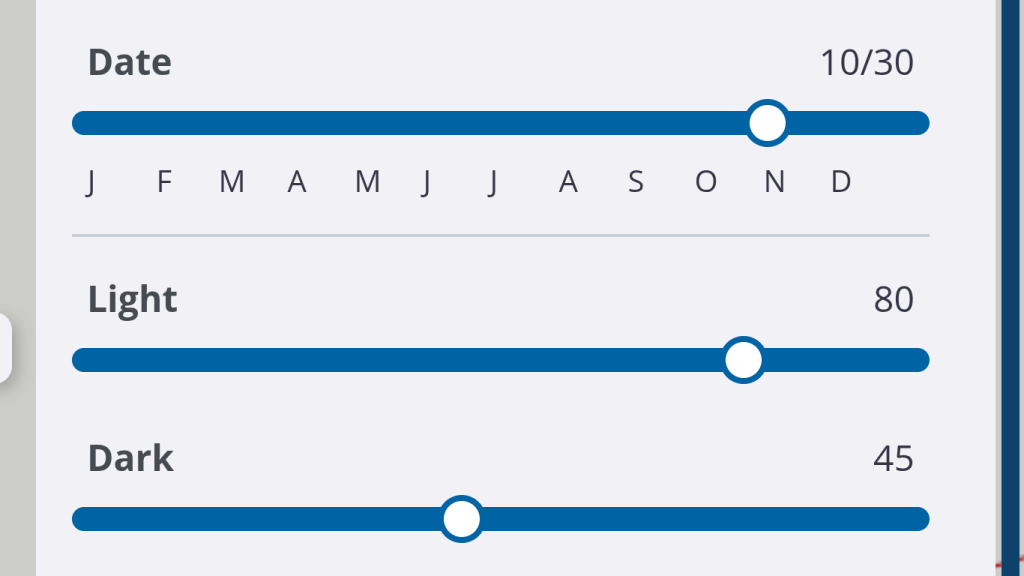
- You can also adjust the date of your model to simulate different seasons and lighting conditions.
- For example, setting it to November gives a cooler, less direct light.
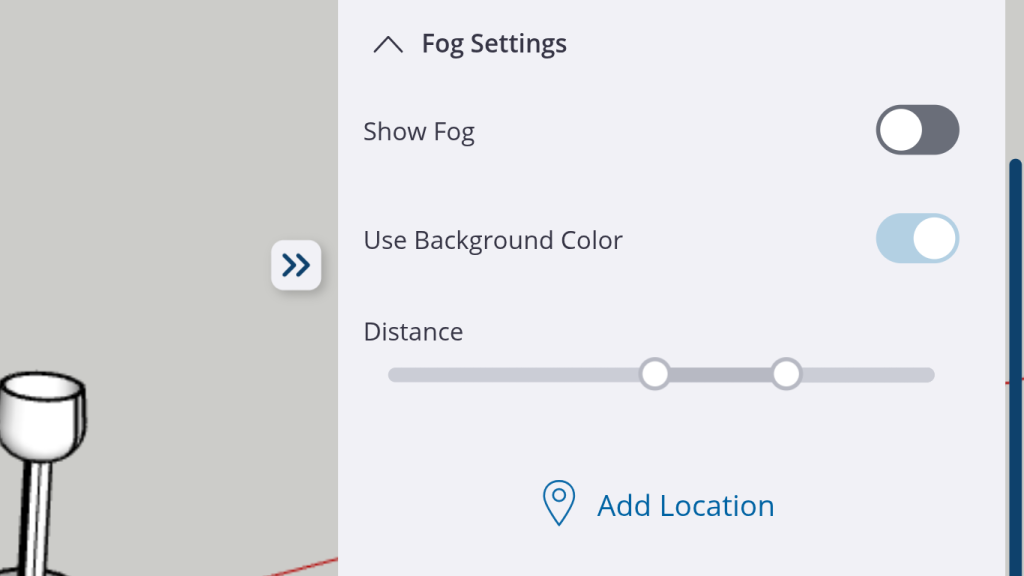
Step 4: Adding Fog Effects
- If you want to simulate a foggy day, SketchUp lets you add a fog effect:
- Enable show fog and adjust the fog distance for different levels of visibility.
- This is perfect for creating atmospheres like a cold or misty environment.
Step 5: Shadows Through Windows
- A cool feature to notice is how shadows behave around transparent objects like windows:
- Open your model and notice how shadows still pass through windows or even walls. This makes your model feel more dynamic and realistic.
- Feel free to experiment by adding windows or other transparent elements to see how light interacts with them.
Conclusion
And that’s it! You’ve now learned how to use the shadow settings in SketchUp to bring your designs to life. Experiment with different times of the day, seasons, and shadow intensities to see how they affect your models. With these tips, you’ll be able to create stunning, realistic designs with perfect lighting.
Join Us For Episode 14
Start Episode 2 to set up your free SketchUp account and unlock its features.