Episode 18
Turn your SketchUp models into shareable visuals that wow any audience!
Introduction
Welcome back to SketchUp Made Simple! In Episode 18, we’re diving into the essential skill of exporting and sharing your models as images or PDFs. Whether you’re preparing for a school project, showcasing your design to clients, or sharing your work online, exporting your models ensures your designs are seen in their best light. Let’s dive in!
Step 1: Preparing Your Model for Export
Set Up Your View:
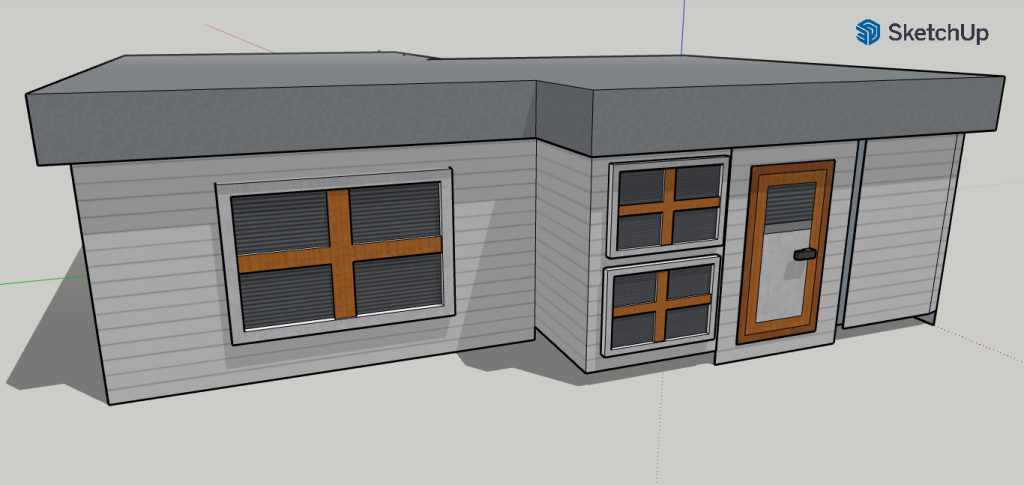
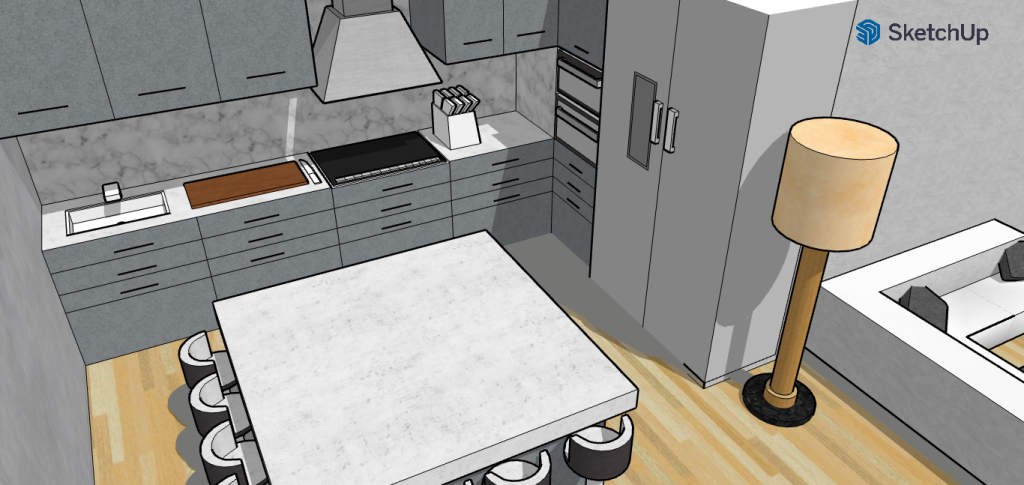
Use the Orbit, Pan, and Zoom tools to frame your model exactly how you want it to appear.Enhance Visuals:
Adjust lighting using the Shadows panel and apply desired Styles to give your model maximum visual impact.Select a Scene:
Navigate to the Scenes panel, choose the camera angle that best represents your design, and lock it in.
Step 2: Exporting Your Model
Access Export Options:
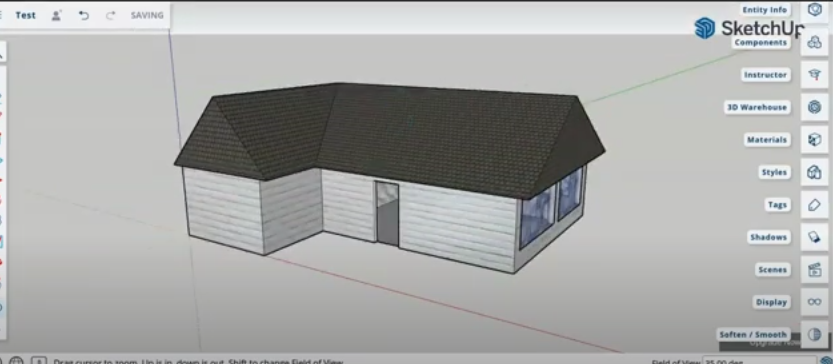
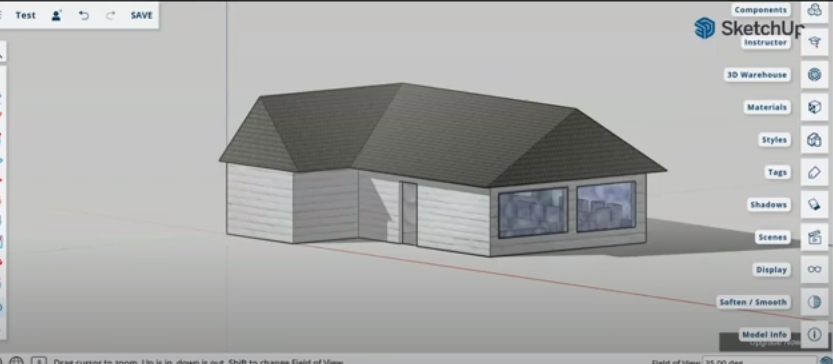
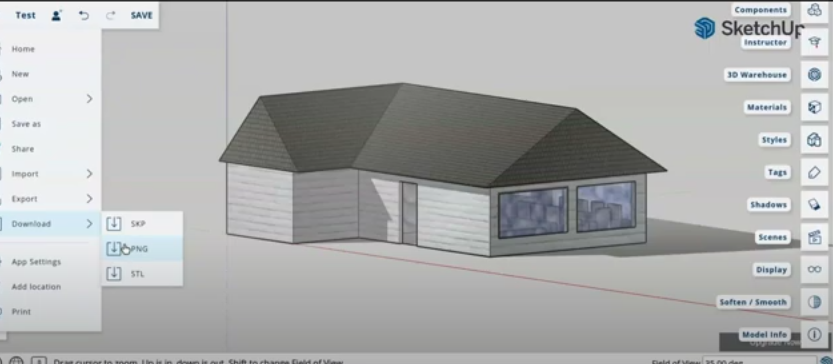
Click on the three-dash menu and choose your export format. You have options such as SKP (SketchUp file), PNG (image), or STL (for 3D printing).Export as PNG or PDF:
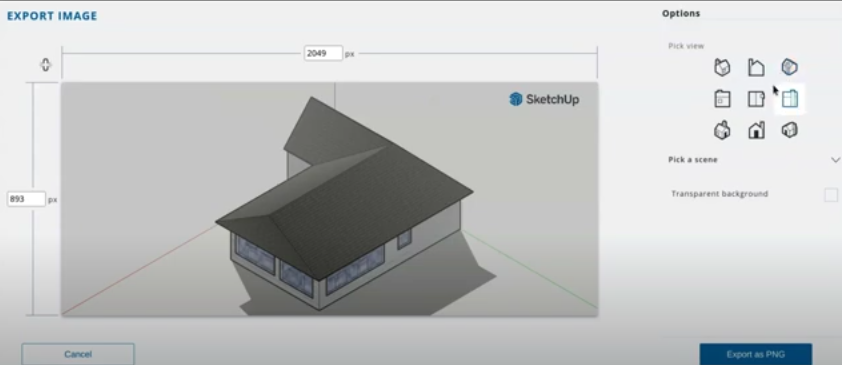
Select PNG to export an image of your current view. Adjust settings like background color and resolution if needed, then click “Download.”Review Your Export:
Once downloaded, check your exported file to ensure it captures your design perfectly.
Step 3: Sharing Your Designs
SketchUp empowers you to turn your creative ideas into tangible 3D designs in just a few steps. It’s more than just software—it’s a tool for innovation and visualization. With SketchUp, you can:
Distribute Your Work:
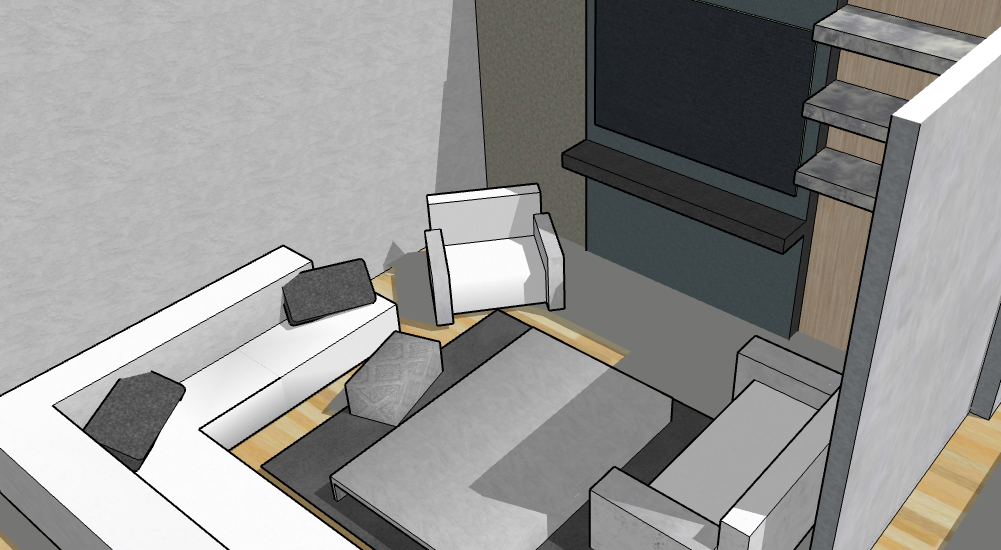
Attach your exported file to an email, upload it to a cloud platform, or share it on social media.
Branding Your Exports:
Consider adding a watermark or your name to your images for professional credit and protection.
Present with Confidence:
Use your exported visuals in presentations, reports, or your design portfolio to showcase your work effectively.
Conclusion
Congratulations! You’ve mastered exporting and sharing your SketchUp models, making it easier than ever to present your designs professionally.
Challenge: Try exporting different scenes of your model and share them with a friend or colleague for feedback.
Join Us For Episode 19
Start Episode 2 to set up your free SketchUp account and unlock its features.