Episode 15

Learn how to apply colors, textures, and custom materials to your SketchUp models to enhance your designs!

Introducing the Paint Bucket Tool:
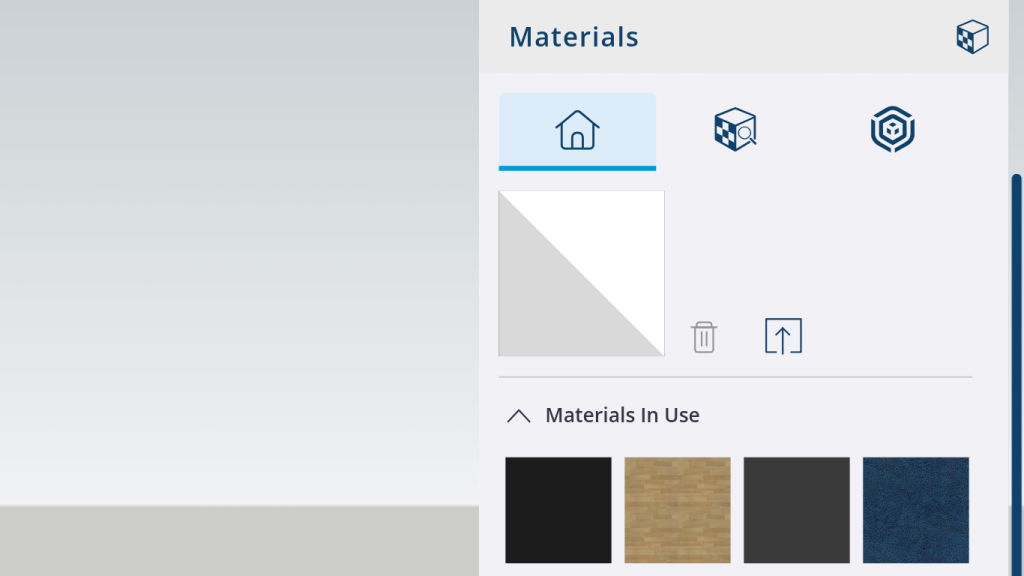
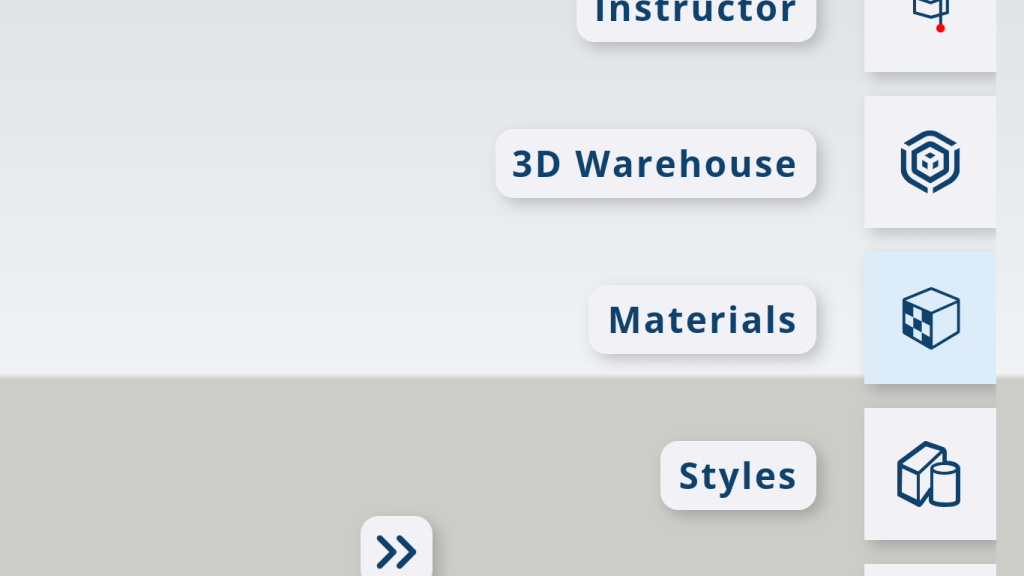
The Paint Bucket Tool is a powerful feature in SketchUp that allows you to easily apply materials to your models. You can access it via the M tool or through the Tools menu, or simply use the B shortcut key.

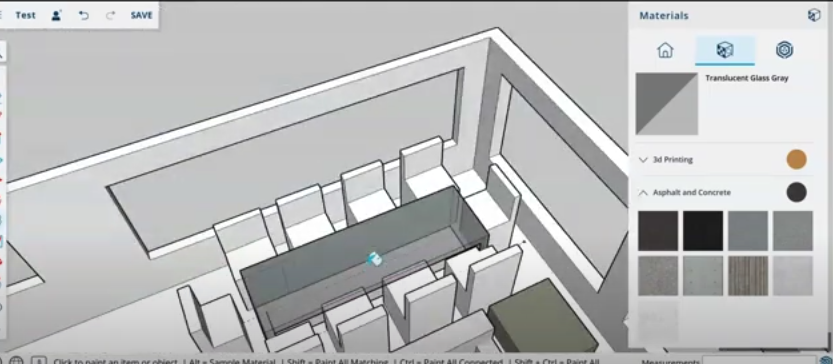
  • Material Panel: When you select the Paint Bucket Tool, the Material Panel will pop up, showing you a variety of categories such as:
    • Basic Colors
    • Brick or Cladding
    • Wood and Glass
    • Metal, Stone, and more!

Lesson Outline:

The Paint Bucket Tool is a powerful feature in SketchUp that allows you to easily apply materials to your models. You can access it via the M tool or through the Tools menu, or simply use the B shortcut key.

  •  
Introducing the Paint Bucket Tool:
  • The Paint Bucket Tool is used to apply colors and textures to your models. You can activate it with the M key or the shortcut B.
  • The Material Panel shows various categories like colors, wood, brick, glass, and more to choose from.
  •  
  • Choose a color from the Colors section and apply it to your model surfaces by clicking on them.
    • Browse textures (like wood, brick, or glass) and apply them similarly, adjusting size if needed.
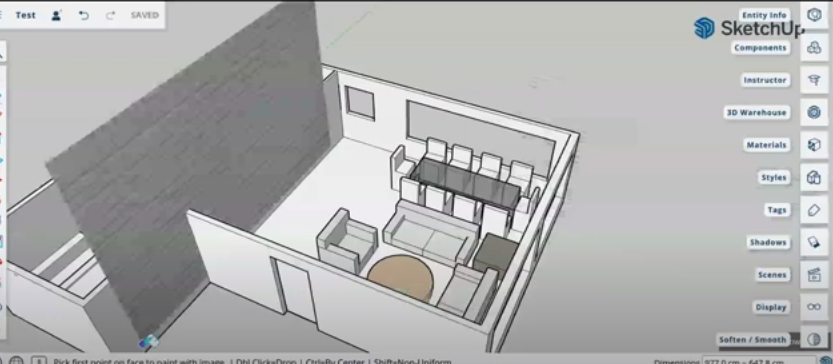
  • Download custom materials from the web or create your own in Photoshop.
    • Drag and drop the material into SketchUp to add it to the Material Panel and apply it to your model. SketchUp automatically cuts areas like windows or doors for you.
  •  

Conclusion:

The Paint Bucket Tool is essential for adding color, texture, and unique materials to your models. Experiment with applying different textures and custom materials to enhance your designs. Practice regularly, and don’t forget to like and subscribe for more tips!

Join Us For Episode 16

Start Episode 2 to set up your free SketchUp account and unlock its features.