Episode 11

Getting Started with SketchUp: Your First Steps in 3D Design

Introduction

Welcome back to SketchUp Made Simple! In Episode 11, we’ll focus on designing a custom table while learning how to use the Tape Measure Tool for precision. Whether you’re designing furniture or any object, using the Tape Measure Tool ensures accuracy and symmetry. Let’s dive in!

Step 1: Creating the Tabletop

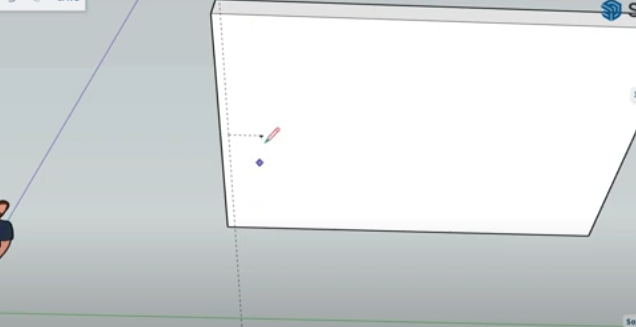
  1. Select the Rectangle Tool and draw a rectangle to represent the tabletop.

  2. Use the Push/Pull Tool to extrude the rectangle to your desired thickness.

Step 2: Measuring and Positioning Table Legs

To ensure our table legs are evenly placed, we’ll use the Tape Measure Tool:

  1. Activate the Tape Measure Tool from the toolbar.

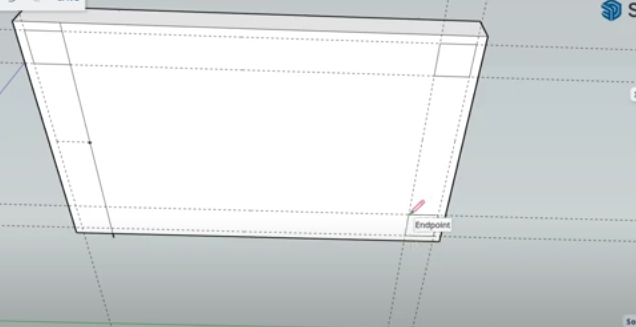
  2. Click on one edge of the table and move the cursor inward to create a guideline. Type 5 cm and press Enter.

  3. From that guideline, create another guideline by typing 20 cm and pressing Enter.

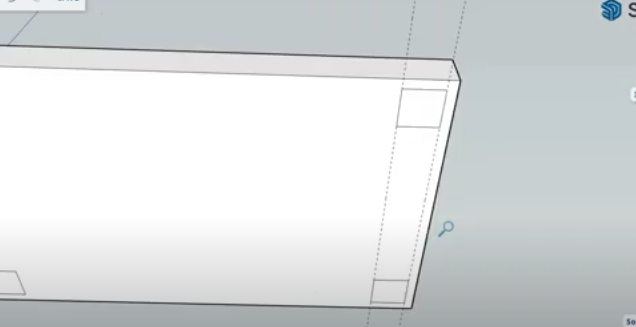
  4. Repeat this process on all four corners of the tabletop.

  5. Use the Line Tool to draw squares at the intersection of the guidelines—these will be the bases for the legs.

Step 3: Extruding the Table Legs

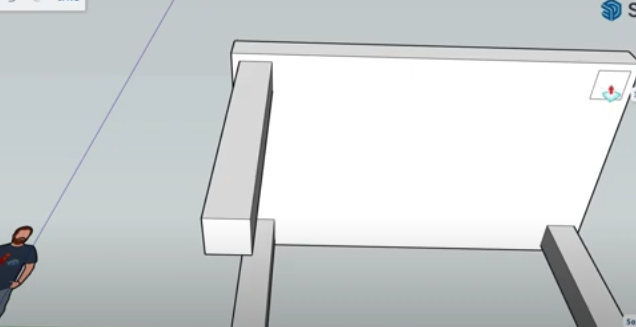
  1. Select the Push/Pull Tool and click on one of the leg bases.

  2. Drag it downwards and type 150 cm, then press Enter.

  3. Repeat for the other three legs to maintain symmetry.

  4. Use the Eraser Tool to remove guidelines and unnecessary lines.

Step 4: Adding Decorative Indents (Optional)

  1. If you want to add a decorative indent to the table legs:

    1. Measure the width of a leg using the Tape Measure Tool.

    2. Create a guideline in the middle and mark an inset distance (e.g., 3 cm).

    3. Use the Rectangle Tool to draw the indent shape.

    4. Use the Push/Pull Tool to extrude the indent inward.

    5. Repeat on all four sides for consistency.

Conclusion

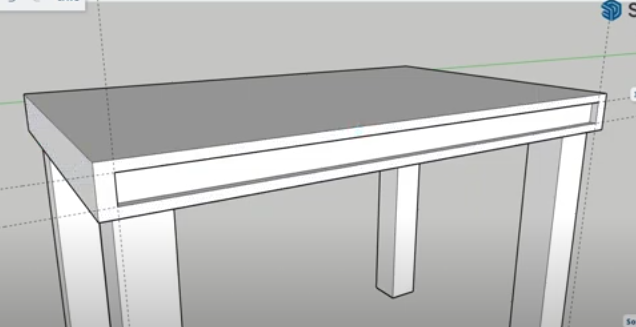
Congratulations! You’ve successfully designed a custom table and used the Tape Measure Tool to ensure precise measurements. This technique applies to various designs beyond furniture, helping you align and scale objects accurately.

Join Us For Episode 12

Start Episode 2 to set up your free SketchUp account and unlock its features.