Getting Started with SketchUp: Your First Steps in 3D Design
Introduction
Editing 3D objects in SketchUp is essential for creating realistic models. In this course, you’ll learn how to modify basic shapes into detailed real-world objects like a bed, couch, and nightstand using simple yet powerful tools.
Lesson 1: Creating a Simple Bed
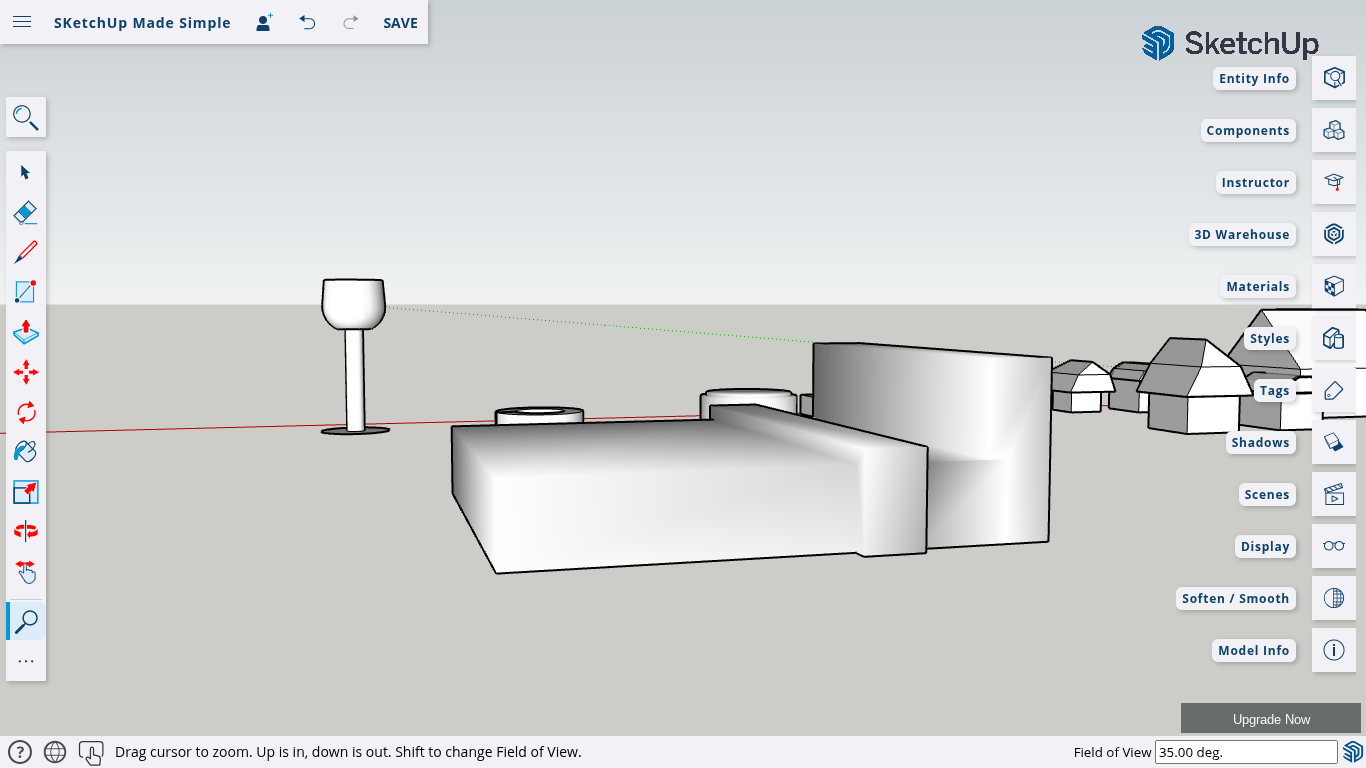
Base & Mattress: Draw a rectangle and use the Push/Pull tool to extrude it into a 3D shape.
Adding a Headboard: Draw another rectangle on one side and push/pull it to add height.
Softening Edges: Use the Eraser tool or Soften/Smooth tool to refine the shape.
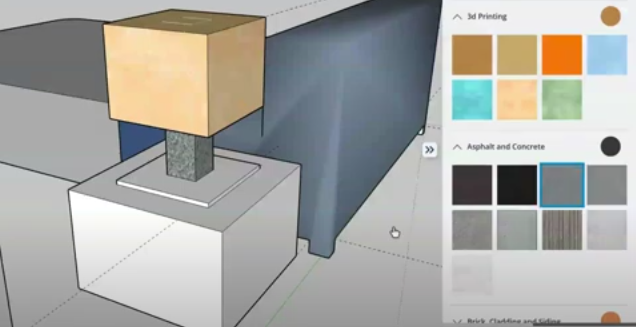
Detailing with Colors: Apply materials to enhance realism.
Lesson 2: Designing a Couch
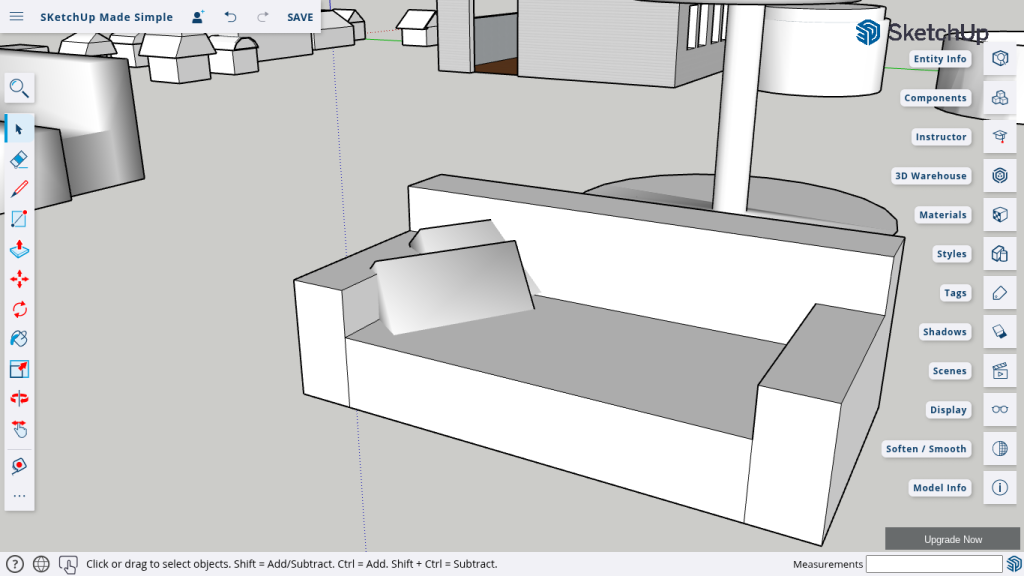
Seat & Arms: Create a base rectangle, push/pull it for thickness, and add side rectangles for armrests.
Backrest: Use the Tape Measure tool to ensure symmetry, then draw and extrude the backrest.
Fine-Tuning: Adjust proportions using the Scale tool and round edges with the Arc tool.
Adding Cushions: Create simple cushions with push/pull and soften them for a realistic effect.
Lesson 3: Enhancing Realism
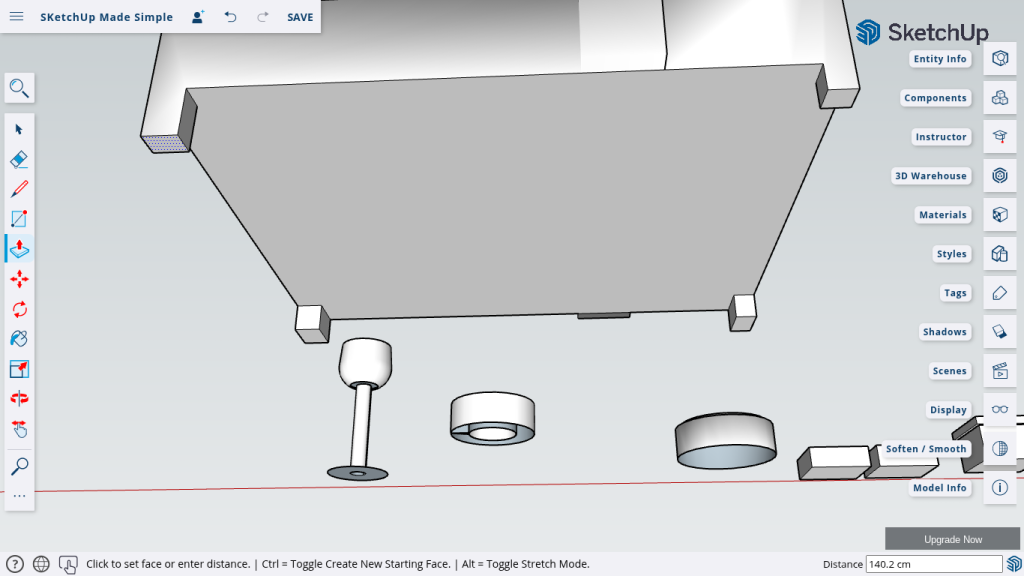
Adding Bed Legs: Draw thin rectangles at the base and push/pull them outward.
Adjusting Angles: Use the Rotate tool to tilt cushions slightly for a natural look.
Lesson 4: Creating a Nightstand & Lamp
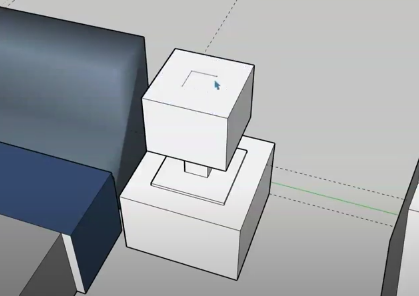
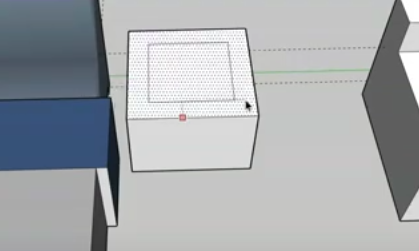
Nightstand: Draw a rectangle, push/pull for height, and use Offset for drawer details.
Lamp: Use a small rectangle, push/pull for depth, and offset parts to create a simple lamp.
Color & Material: Customize designs using the Paint Bucket tool.
Lesson 5: Pro Tips for Editing
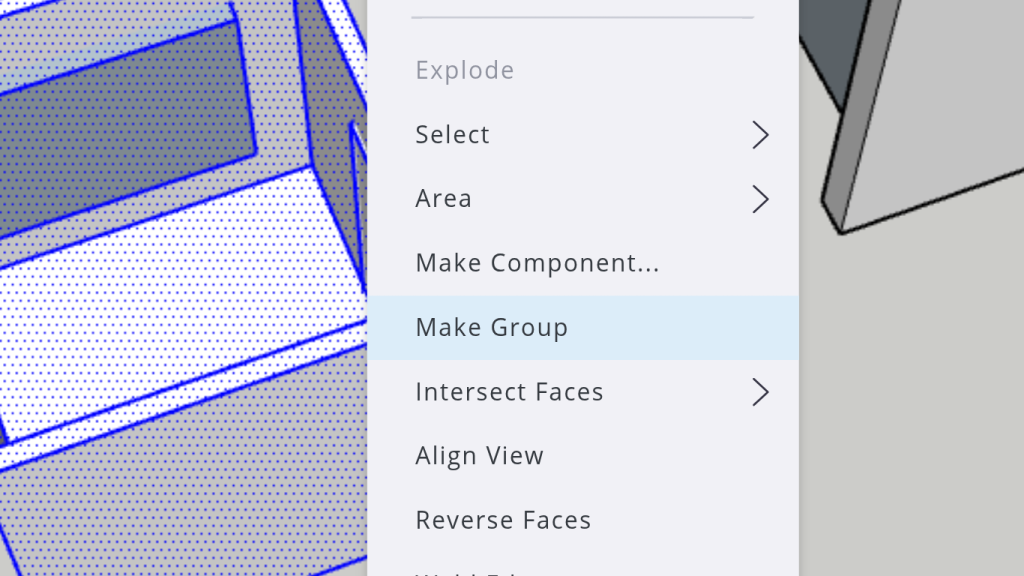
Grouping Objects:
Prevent unwanted changes by grouping elements like bed frames, cushions, or drawers.
Using Guides:
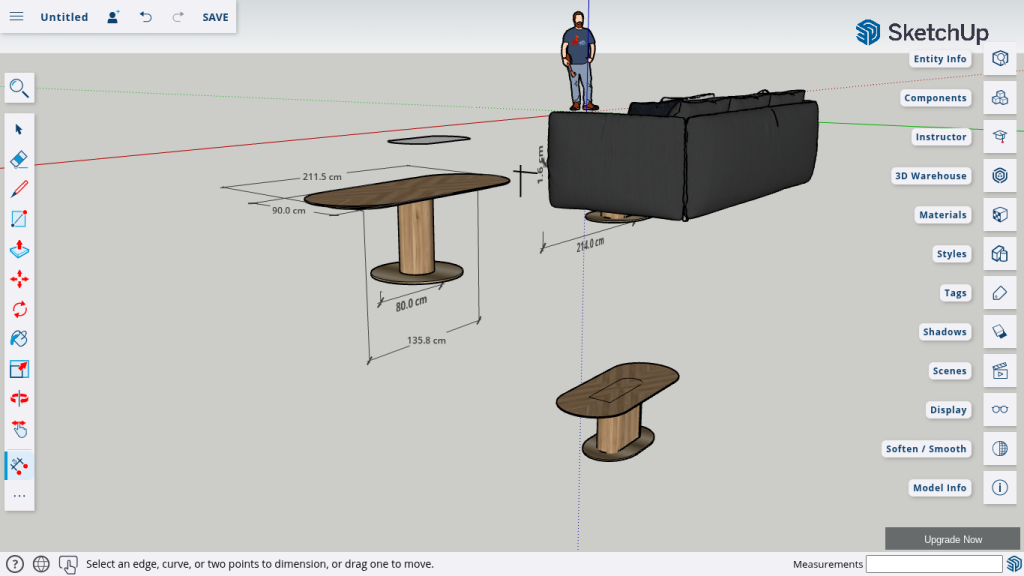
Utilize the Tape Measure tool for precise measurements.
Offset for Details:
Easily create uniform shapes for grooves and patterns.
Conclusion
With these techniques, you can edit and refine 3D objects efficiently in SketchUp. Experiment with different furniture designs and enhance your models with smooth edits.
🚀 Next Steps: Stay tuned for Episode 10, where we explore advanced tools for even more complex designs!
Join Us For Episode 10
Start Episode 2 to set up your free SketchUp account and unlock its features.