Episode 6
Transform 2D Shapes into 3D Models with Ease
Course Overview:
In this course, you’ll learn how to use SketchUp’s Push/Pull tool to take flat 2D shapes and transform them into 3D objects. Whether you’re creating simple models or complex structures, mastering this tool is essential for efficient and precise 3D modeling.
💡 Perfect for: Beginners & intermediate SketchUp users looking to improve their 3D design skills.
Lesson 1: Introduction to the Push/Pull Tool
What You’ll Learn:
- What the Push/Pull tool is
- Where to find it in SketchUp
- The shortcut key for quick access
🎯 Key Concept: The Push/Pull tool extrudes a surface, allowing you to pull it outward or push it inward to add depth.
How to Access the Push/Pull Tool
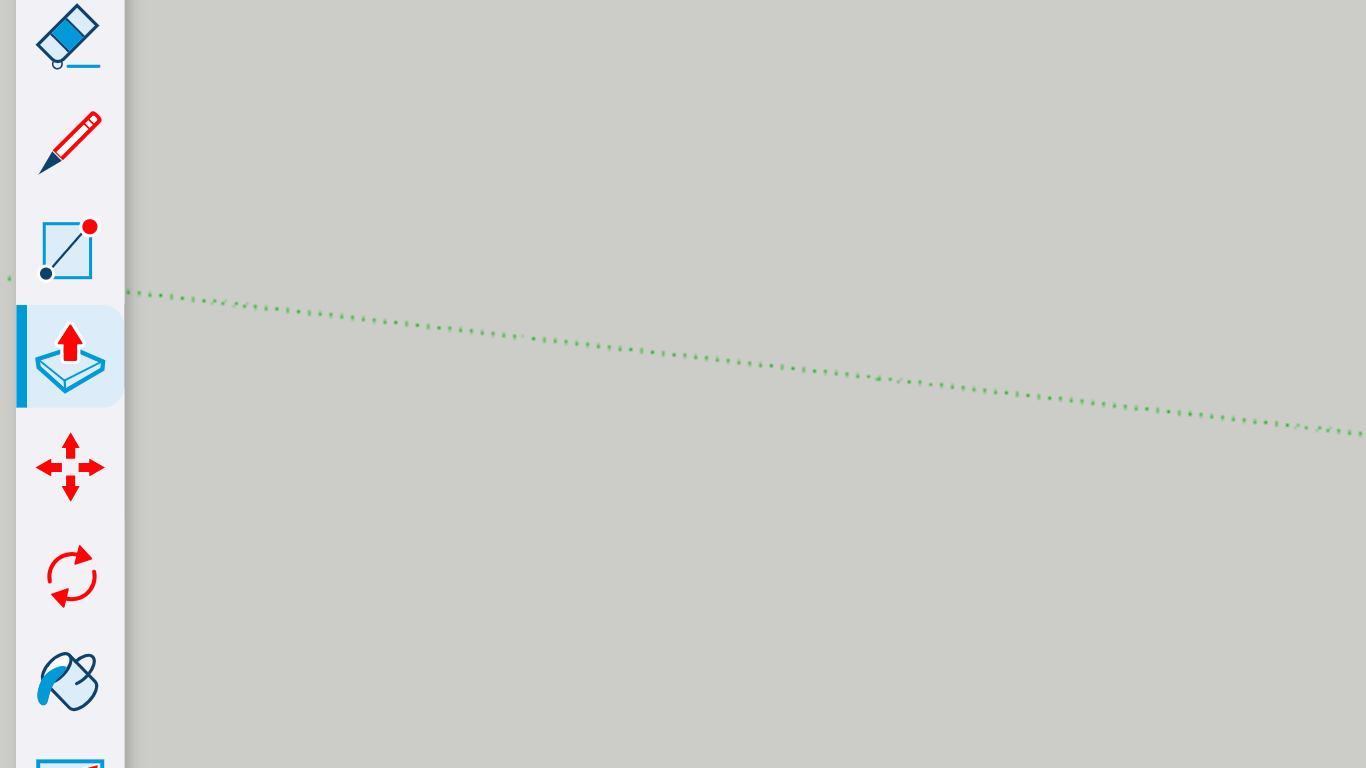
🔹 Method 1: Click the Push/Pull icon in the toolbar.
🔹 Method 2: Press P on your keyboard for a shortcut.
✅ Activity: Open SketchUp and locate the Push/Pull tool using both methods.
Lesson 2: Creating 3D Shapes from 2D Objects
📌 What You’ll Learn:
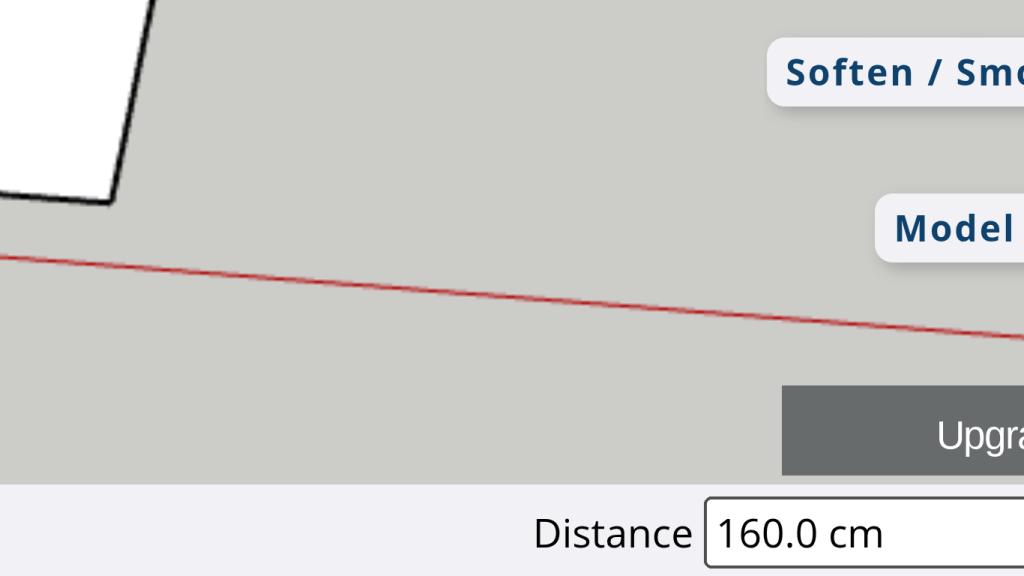
- How to apply the Push/Pull tool to different shapes
- How to control the depth of extrusion
Steps to Use the Push/Pull Tool
1️⃣ Select the Push/Pull tool.
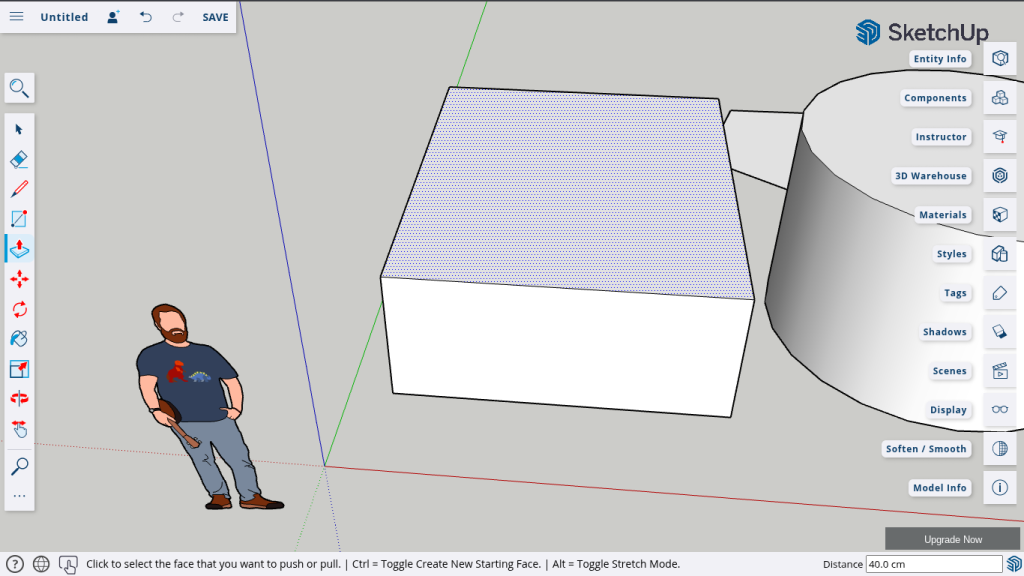
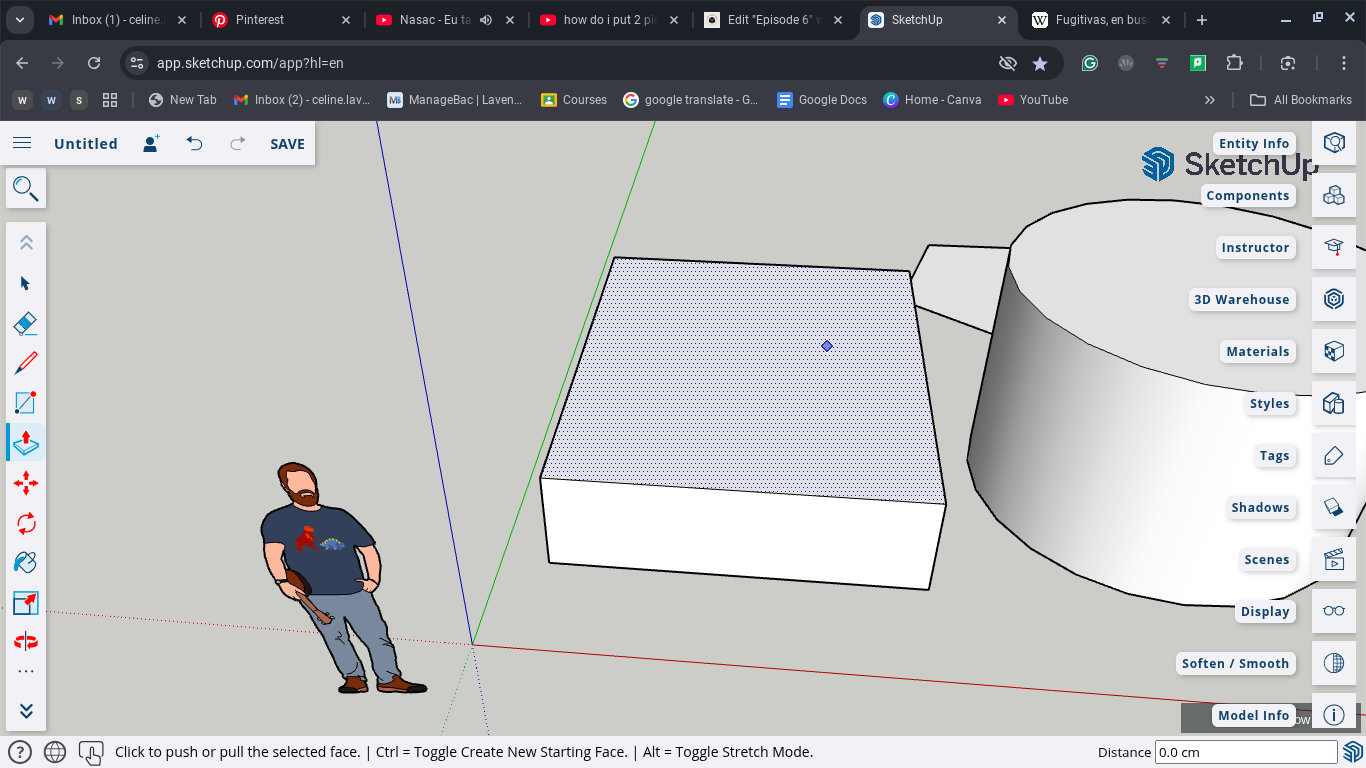
2️⃣ Click on a flat surface (e.g., a rectangle).
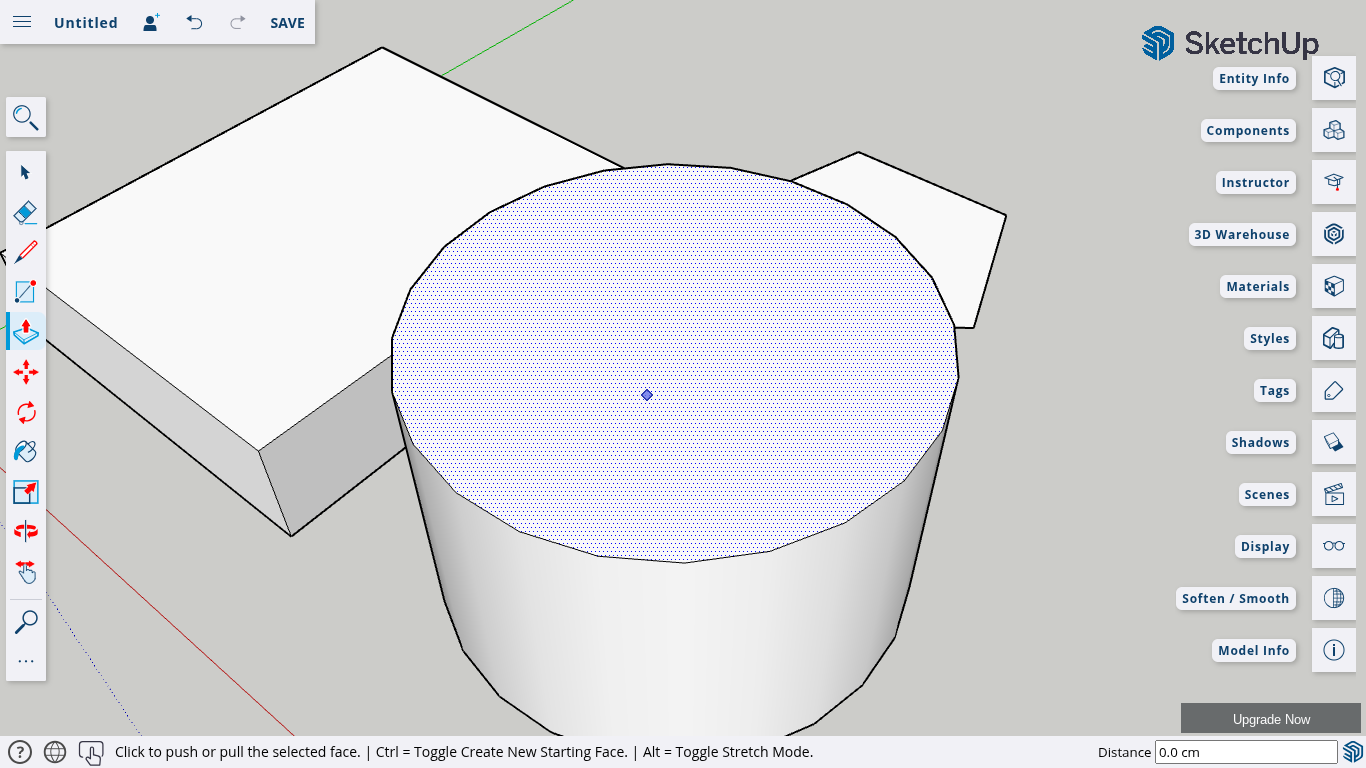
3️⃣ Drag the surface outward to create a 3D object.
4️⃣ Release the mouse button to set the new depth.
📍 Example Shapes:
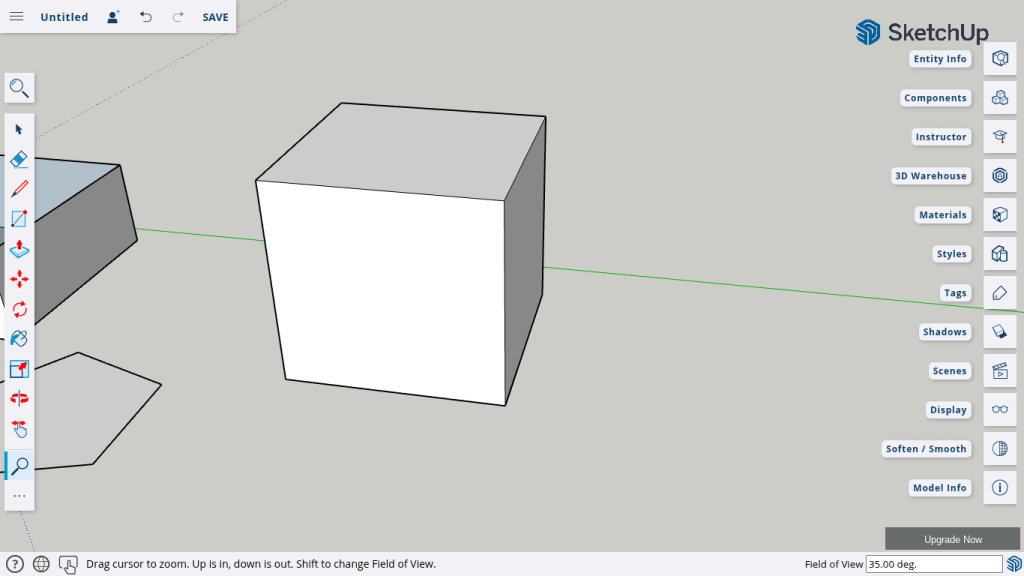
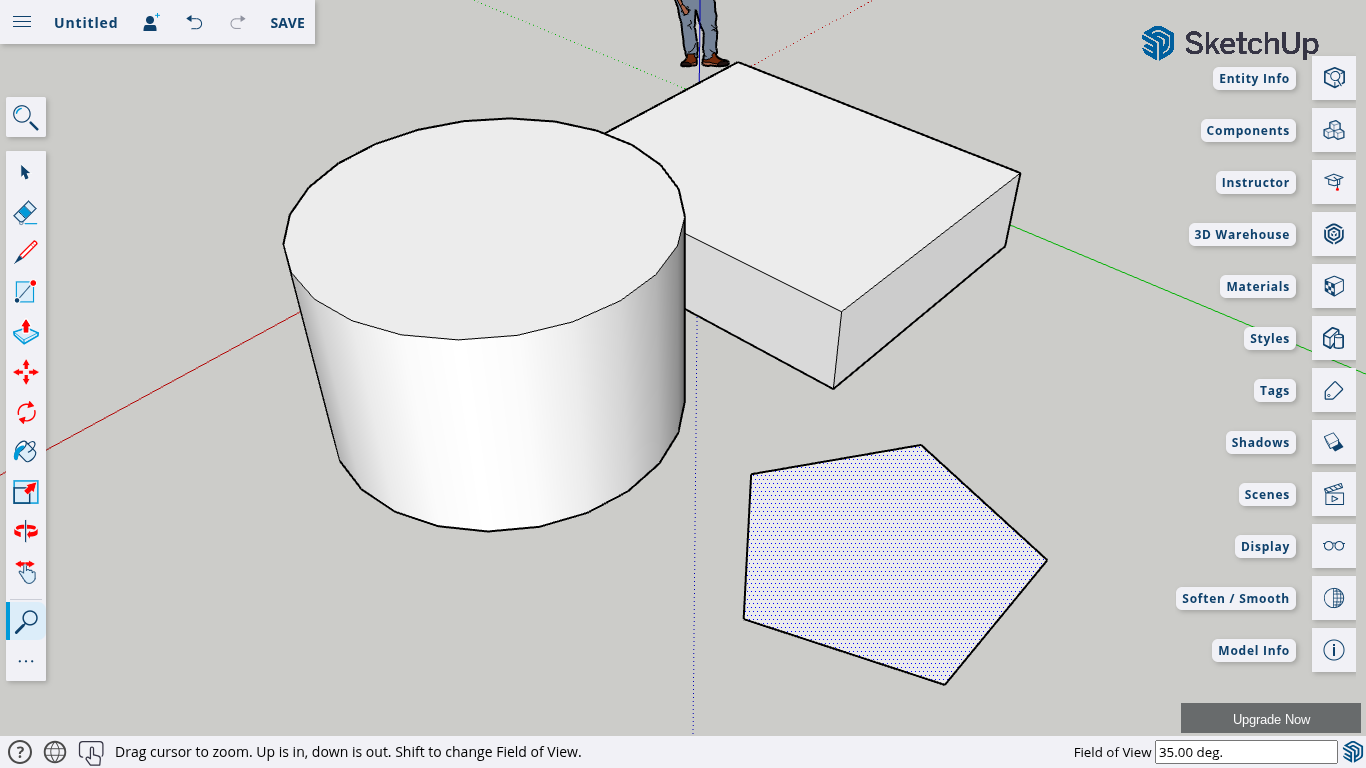
- Rectangle → Creates a box
- Circle → Creates a cylinder
- Pentagon → Creates a prism
📌 Pro Tip: The tool only works on flat surfaces. It will not work on curved surfaces, edges, or open shapes.
✅ Activity: Draw a rectangle, circle, and pentagon in SketchUp and extrude them into 3D objects.
Lesson 3: Precision Modeling with the Push/Pull Tool
SketchUp empowers you to turn your creative ideas into tangible 3D designs in just a few steps. It’s more than just software—it’s a tool for innovation and visualization. With SketchUp, you can:
📌 What You’ll Learn:
- How to set exact dimensions for extrusions
- How to create consistent shapes
Steps for Precise Extrusion
1️⃣ Select the Push/Pull tool and click a surface.
2️⃣ Before clicking again, type the exact height (e.g., 251.49 cm) on your keyboard.
3️⃣ Press Enter to apply the exact height.
📌 Pro Tip:
This feature is great for architects and professionals who need to follow strict dimensions.
✅ Activity: Create a rectangle and set its height to 251.49 cm using precise measurements.
Lesson 4: Advanced Uses of the Push/Pull Tool
📌 What You’ll Learn:
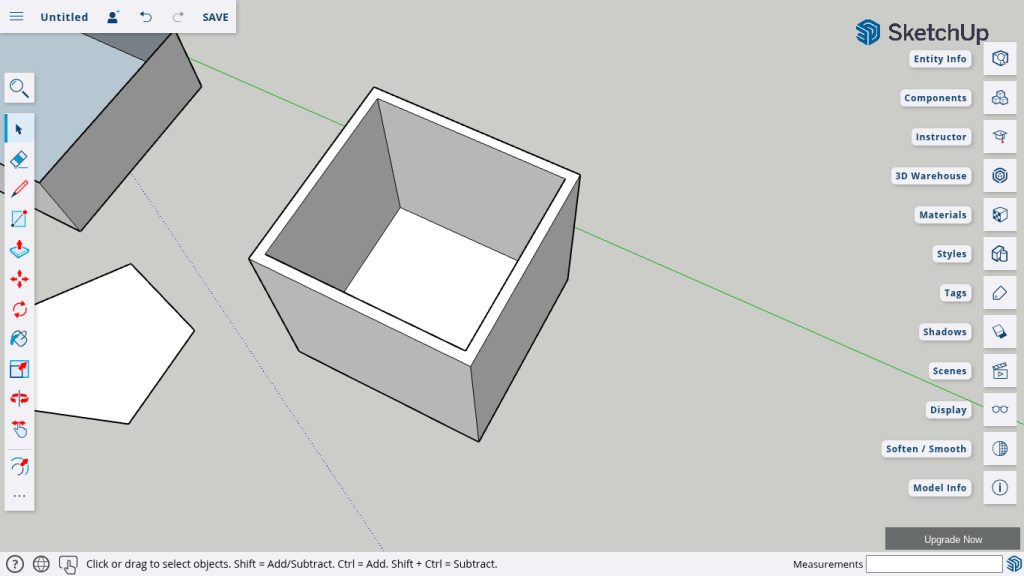
- How to create hollow objects
- How to use the Offset tool for inner cutouts
Creating Hollow Objects (Example: A Simple House)
1️⃣ Draw a large rectangle for the house base.
2️⃣ Use Push/Pull to pull it upward.
3️⃣ Select the Offset tool to create an inner box.
4️⃣ Use Push/Pull again to push the inner section downward.
📌 Pro Tip: Use the on face guide to ensure the inner cutout aligns perfectly.
✅ Activity: Design a simple house shape with a cutout interior.
Lesson 5: Cutting Openings for Doors and Windows
📌 What You’ll Learn:
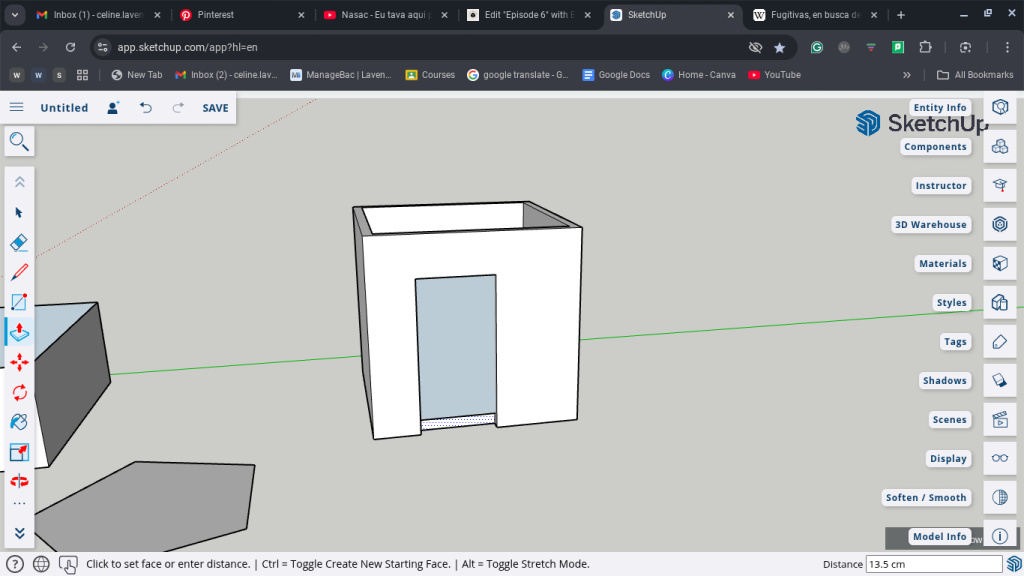
- How to create doorways and windows using Push/Pull
- How to ensure accurate cutouts
Steps to Create a Door and Windows
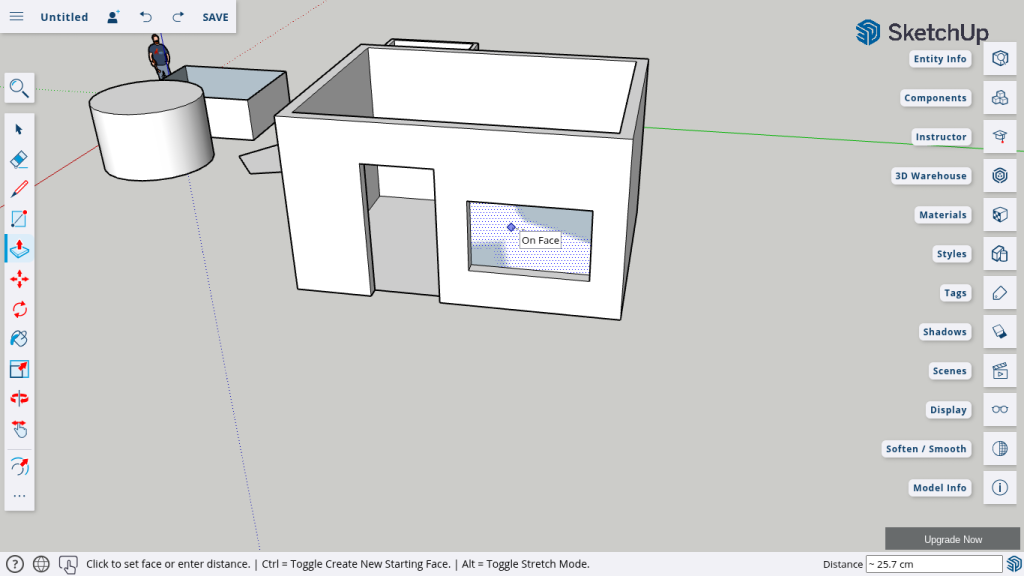
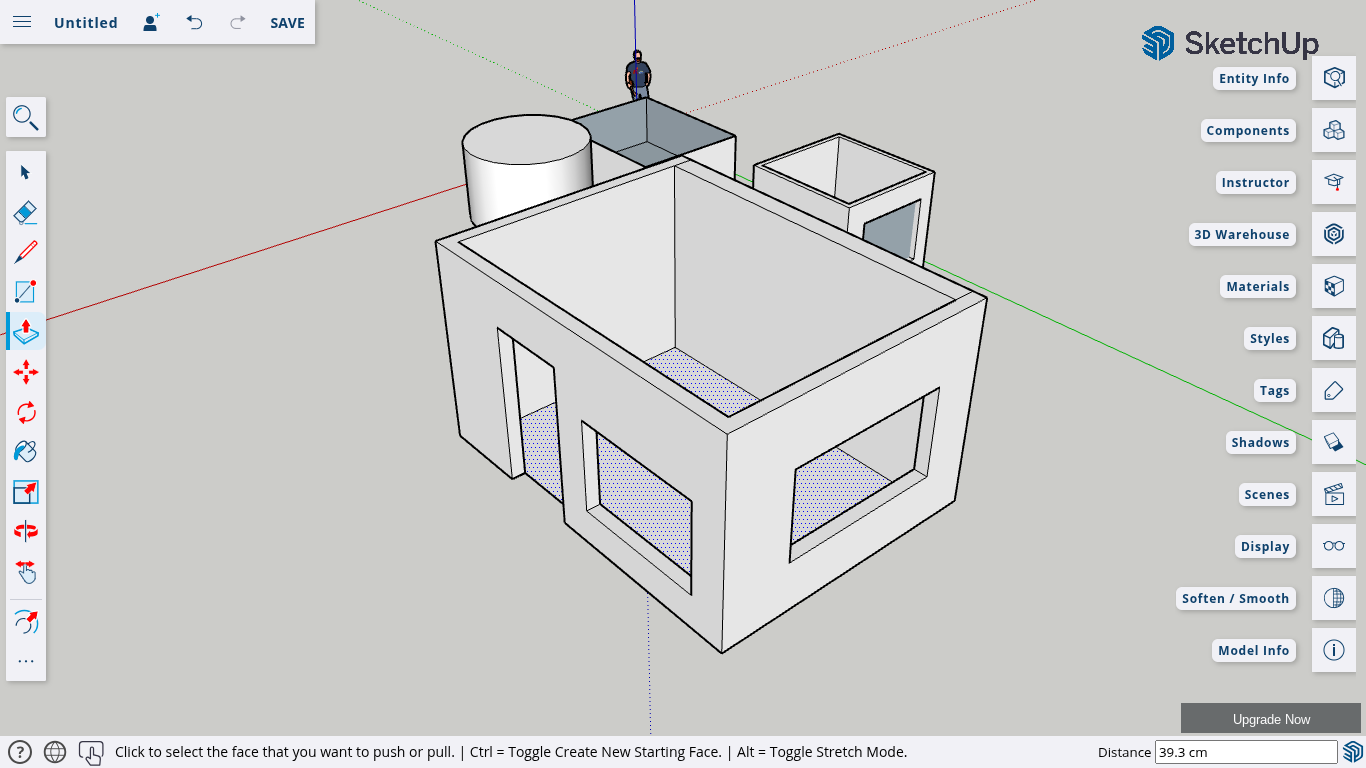
1️⃣ Use the Rectangle tool to draw a door on a box.
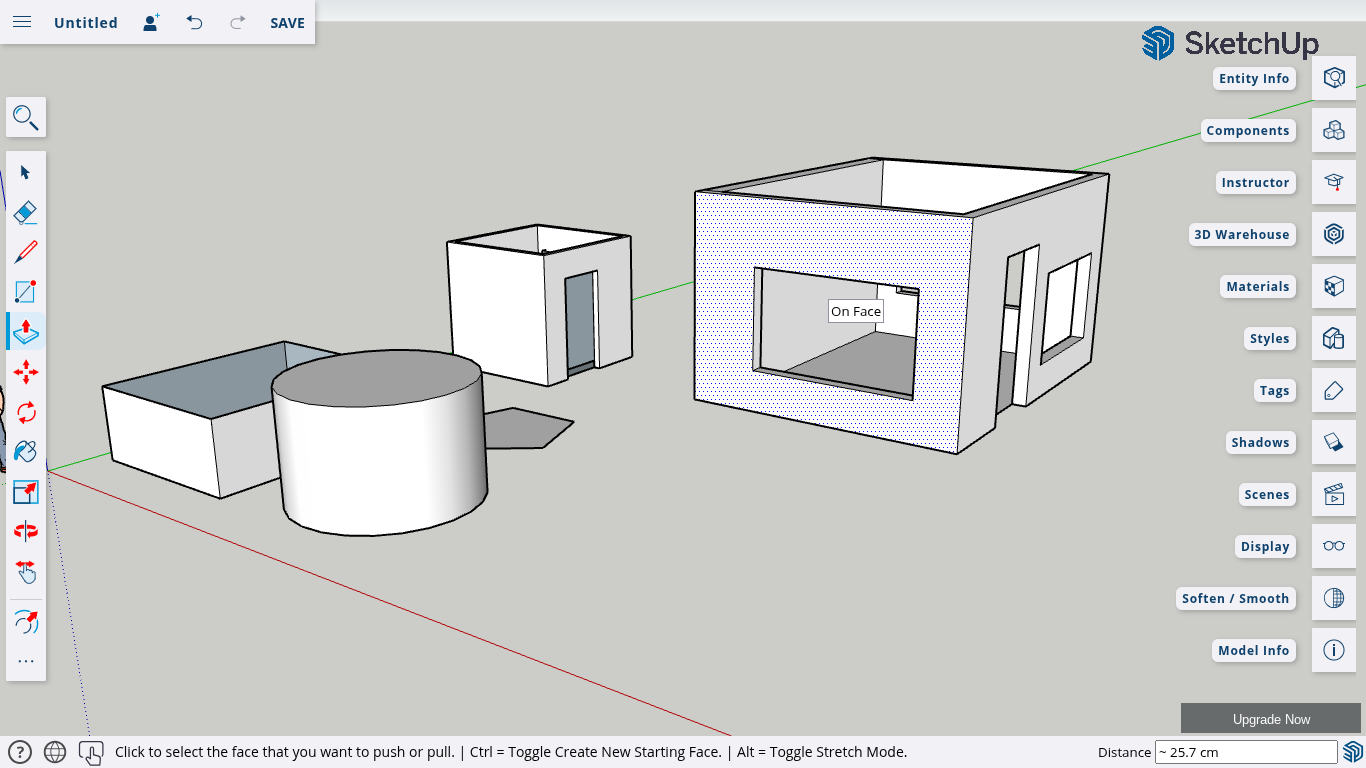
2️⃣ Select Push/Pull and push it inward until it says “On Face”.
3️⃣ Repeat for windows on different walls.
📌 Pro Tip:
If a window cutout doesn’t work, check if the shape is fully closed.
✅ Activity: Create a box with at least one door and one window.
Lesson 6: Pro Tips for the Push/Pull Tool
📌 What You’ll Learn:
- How to use shortcuts to speed up modeling
- How to ensure clean extrusions
Pro Tips for Efficiency
✔ Double-click to repeat the same extrusion on another face.
✔ Ensure your shapes are closed—open edges will cause issues.
✔ Use guides to control depth precisely.
📌 Example: Using Guides for Windows
- Measure the wall height and width.
- Set a guide line where the window should be.
- Draw a rectangle and push it in precisely.
✅ Activity: Try double-clicking on another face after an extrusion to see how it works.
Congratulations! You’ve Mastered the Push/Pull Tool!
🔹 Now you can transform 2D designs into fully realized 3D models!
📢 Next Steps:
✔ Explore more SketchUp tools.
✔ Refine your architectural and product design skills.
✔ Watch more tutorials on SketchUp Made Simple!
📍 Want More SketchUp Tips?
🔔 Subscribe to SketchUp Made Simple on YouTube for more tutorials!
Join Us For Episode 7
Start Episode 2 to set up your free SketchUp account and unlock its features.